
Discover the Best IPTV App for Firestick: Your Ultimate Guide

You bought a Firestick expecting to cut the cord and finally watch live sports, international channels, and on-demand movies without paying a fortune, and then reality hit. Either the app you downloaded barely works, the stream keeps buffering every three minutes, or you spent an hour trying to figure out how to even get an IPTV app onto Amazon's locked-down device. Sound familiar? This guide gives you the exact solution: the best IPTV app for Firestick right now, how to install it in minutes, and how to keep it running smoothly without a single frame dropping.
Getting your IPTV setup right on a Firestick isn't just about convenience, it's about building a reliable, long-term streaming experience that doesn't randomly break on game day. A poorly configured app or the wrong choice of player can mean pixelated video, constant loading screens, and a ruined movie night, and getting it right from the start saves you hours of frustration down the road.
Core Concepts & Need-To-Know Info
- M3U Playlist / M3U URL: This is the link your IPTV provider gives you. It contains the list of all your channels and VOD content. You paste it into your IPTV app to load everything.
- Xtream Codes API: An alternative to M3U, this uses a server URL, username, and password to connect to your IPTV service. Many premium providers now use this format.
- EPG (Electronic Program Guide): The TV guide that shows what's currently on and what's coming next. A good IPTV app pulls this automatically.
- VOD (Video On Demand): The on-demand movie and TV show section of your IPTV subscription, separate from live channels.
- ISP Throttling: Your internet provider can detect and slow down IPTV traffic, causing buffering even on a fast connection. A VPN solves this.
- Firestick Sideloading: Because IPTV apps aren't on the Amazon App Store, you install them using the Downloader app, this is completely legal and safe.
- Internet Speed Requirement: Minimum 10 Mbps per stream for HD, and 25 Mbps or higher for 4K UHD streams.
Step-by-Step Guide
- Step 1: Enable Apps from Unknown Sources:
- Go to your Firestick home screen and navigate to Settings, My Fire TV, Developer Options. Toggle on Apps from Unknown Sources and also enable ADB Debugging while you're there. This unlocks your device to install apps that aren't in Amazon's store.
- Step 2: Install the Downloader App:
- From the Firestick home screen, use the search bar to find and install the Downloader app by AFTVnews. It's free and available directly in the Amazon App Store. This app is your gateway for sideloading any IPTV player onto the device.
- Step 3: Open Downloader and Enter the TiviMate URL:
- Launch Downloader and tap the URL bar. Type in the official TiviMate APK download link (available on the TiviMate official website or trusted IPTV forums). Hit Go and the APK will download directly to your Firestick.
- Step 4: Install the APK:
- Once downloaded, Downloader will automatically prompt you to install the file. Click Install, wait for it to complete, then select Done (not Open, we'll launch it properly in a moment). You can also click Delete to remove the APK installer file and free up space.
- Step 5: Open TiviMate and Add Your Playlist:
- Navigate to your apps list on the Firestick home screen or find TiviMate in Settings, Applications, Manage Installed Applications. Open TiviMate and tap Add Playlist. Choose between M3U URL or Xtream Codes depending on what your IPTV provider sent you. Enter your credentials carefully, one wrong character breaks the entire connection.
- Step 6: Configure Your EPG:
- Once your playlist loads, go into Settings, EPG inside TiviMate and enter your EPG URL (your provider should supply this). Set the refresh interval to every 12 hours so your guide stays current without hammering the server.
- Step 7: Set Your Preferred Player:
- Inside TiviMate settings, go to Player and switch from the default player to ExoPlayer for most streams, or MX Player if you experience audio sync issues on certain channels. ExoPlayer handles the widest range of stream formats natively.
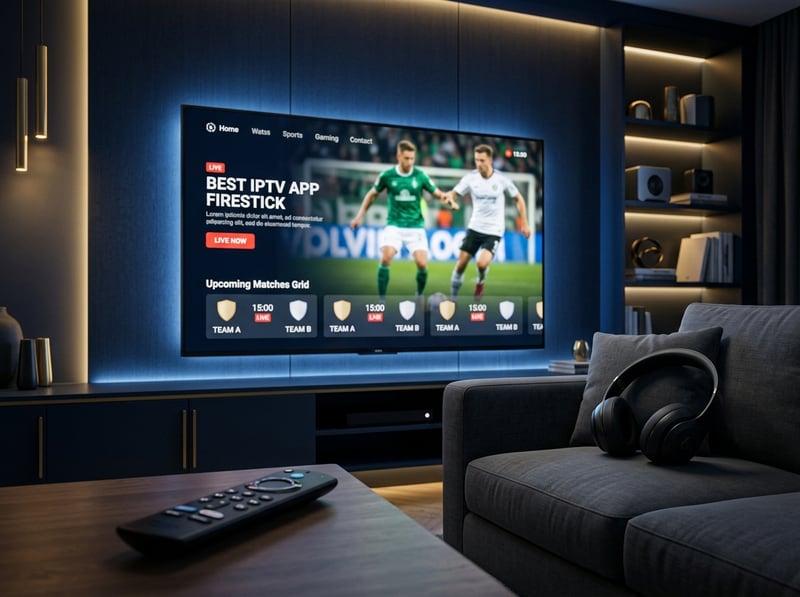
Imagine finally getting everything set up, sitting down for a Champions League final, and your stream freezes at minute 89 because your ISP throttled your connection during peak evening hours. Or you spent 45 minutes entering your Xtream Codes credentials only to find out you had one lowercase letter wrong the entire time. These aren't edge cases, they happen to thousands of users every week, and a few minutes of prevention eliminates all of it.
TiviMate vs. IPTV Smarters: Which Is Right for You?
Both apps are excellent, but they serve slightly different users. TiviMate is the gold standard for Firestick. It's fast, has a beautiful TV-style EPG interface, supports multiple playlists simultaneously, and its premium version ($4.99/year) unlocks recording, favorites, and catch-up TV. If you watch live TV regularly and want a cable-replacement experience, TiviMate wins every time. IPTV Smarters Pro is better for users who primarily watch VOD content. Its movie and series library interface is cleaner, and it supports Xtream Codes natively without needing a workaround. It's also free, which makes it attractive for first-time users testing a new subscription. GSE Smart IPTV is a solid middle ground, completely free, handles both M3U and Xtream Codes, and works reliably on Firestick with minimal configuration. It lacks TiviMate's polish but gets the job done. For most users reading this guide: start with TiviMate. Its reliability and interface quality on Firestick hardware is unmatched, and the premium cost is negligible compared to what you're saving on cable.
Best VPNs to Stop ISP Throttling on Firestick
- ExpressVPN: Consistently the fastest option for IPTV users. It has a native Fire TV app available directly in the Amazon App Store, so no sideloading required. Lightway protocol keeps speeds high even during peak hours.
- NordVPN: Excellent for users who also care about privacy. NordLynx protocol delivers speeds comparable to ExpressVPN, and its SmartPlay feature is specifically designed to reduce buffering on streaming platforms.
- Surfshark: The best budget option. Unlimited device connections mean you can cover your Firestick, phone, and laptop on one subscription. Its speeds are more than sufficient for HD streaming.
Always connect to a server geographically close to your IPTV provider's servers for the lowest latency. If your provider is based in Europe, connect to a European VPN server rather than one in the US.
Common Setup Mistakes and How to Fix Them
- Playlist loads but shows no channels: This almost always means your M3U URL has expired or your subscription has lapsed. Contact your provider and request a fresh URL, most will send one within minutes.
- Channels buffer constantly but VOD works fine: This is a classic ISP throttling symptom. Live streams use consistent bandwidth that ISPs can detect and throttle. Enable your VPN and the buffering typically stops within one reconnect.
- EPG shows wrong times or missing guide data: Your device timezone is likely misconfigured. Go to Firestick Settings, Device, Date & Time and enable automatic timezone detection. Then refresh your EPG inside TiviMate.
- App crashes when switching channels quickly: TiviMate or any IPTV app on Firestick can struggle if the device is low on RAM. Clear the app cache by going to Settings, Applications, TiviMate, Clear Cache, then restart the app.
- Audio out of sync on certain channels: Switch the player for that channel to MX Player inside TiviMate's per-channel settings. Hardware decoding on some channels can cause sync drift, software decoding through MX Player typically fixes it.
Network Requirements for HD and 4K IPTV Streaming
- HD (1080p) streams: Minimum 10 Mbps dedicated to the stream. If other devices are also using the network, you need at least 25 Mbps total household speed.
- 4K UHD streams: Minimum 25 Mbps per stream, ideally 50 Mbps or higher. Very few IPTV providers actually offer true 4K content, but when they do, your network needs to keep up.
- Wired connection beats Wi-Fi every time: If you're experiencing buffering and your Firestick is on Wi-Fi, the single most impactful fix is connecting via Ethernet using a compatible Ethernet adapter for Firestick. Wi-Fi interference from neighbors, walls, and microwaves causes more IPTV buffering than any app issue.
- Router placement matters: If Ethernet isn't an option, move your router closer to your Firestick or use a Wi-Fi extender with a dedicated 5GHz band for your streaming device.
- DNS optimization: Changing your Firestick's DNS to 1.1.1.1 (Cloudflare) or 8.8.8.8 (Google) can reduce channel load times and improve stream startup speed noticeably.
Troubleshooting: Fixing Playlist and Stream Errors
- Error: Unable to load playlist: Re-enter your M3U URL or Xtream Codes credentials from scratch. Copy-paste if possible to eliminate typos. Also verify your subscription is active with your provider.
- Black screen on channel load: Try switching between ExoPlayer and MX Player in TiviMate's player settings. Some stream formats are incompatible with certain decoders.
- Stream starts then freezes after 10-20 seconds: This is almost always a server-side issue with your IPTV provider during peak hours. Try a different server if your provider offers multiple, or contact support.
- TiviMate shows No streams available: Your provider's stream links may have changed. Request an updated M3U URL and re-add the playlist inside TiviMate.
- App won't install from Downloader: Go back to Settings, Developer Options and confirm Apps from Unknown Sources is still enabled. Firestick occasionally resets this after updates.
Finding the best IPTV app for Firestick comes down to one clear answer for most users: TiviMate, properly configured, paired with a reliable VPN and a solid IPTV subscription. The setup process takes under 20 minutes if you follow the steps above, and the result is a streaming experience that genuinely rivals and often beats traditional cable. Check out our full channel list and pricing plans to find the subscription that matches your needs, and start streaming everything your Firestick was always capable of delivering.
Frequently Asked Questions
Ready to get started?
Try our service risk-free with a 24-hour free trial.
Related Articles

Discover the Best IPTV Options for Canadian Drama TV Shows
Explore IPTV options to enjoy Canadian drama TV shows.
The Ultimate Guide to IPTV Streaming Devices: Tips and Tricks
Master your IPTV streaming devices with expert tips.

How to Stream Canadian Television Shows with IPTV: A Complete Guide
Learn to stream Canadian TV shows via IPTV easily.