
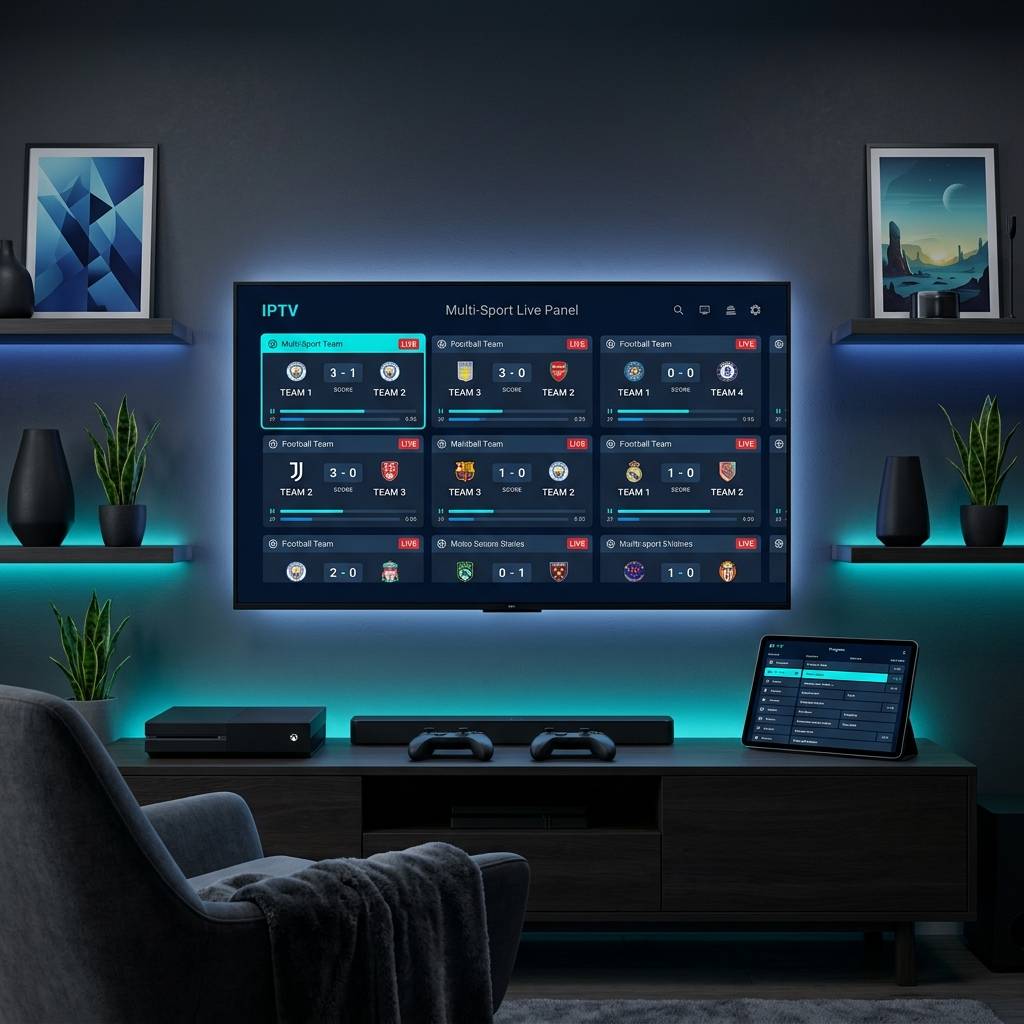
How to Get IPTV: The Complete Guide for 2026 Enthusiasts

Tired of paying a fortune for cable channels you never watch, only to still miss the live sports, international content, and on-demand movies you actually want? You're not alone. Millions of people are cutting the cord every month, and IPTV — Internet Protocol Television — is exactly how they're doing it. The problem is that most guides online are either dangerously vague, embarrassingly outdated, or written by someone who clearly never touched a Firestick in their life. This guide fixes that. Whether you're setting up on a Firestick, Android TV box, Smart TV, or TiviMate, you'll walk away knowing precisely how to get IPTV running, what pitfalls to dodge, and how to keep your streams buttery smooth.
Solving your setup correctly the first time is crucial because a poorly configured IPTV connection leads to ISP throttling, constant rebuffering, and playlist authentication errors that kill your experience before it even begins. A smooth IPTV setup depends on choosing the right app, entering the correct credentials, and protecting your connection — all of which this guide covers step by step.
Core Concepts and Need-to-Know Info Before You Start
- What is IPTV? It delivers television content over your broadband internet connection instead of a satellite dish or cable wire.
- M3U Playlist / M3U URL: A file or web link your IPTV provider gives you that contains all channel and VOD information. Without a valid M3U URL, no app can load your channels.
- Xtream Codes API: An alternative login format using a server URL, username, and password instead of a raw M3U link. Most premium providers support both.
- VOD (Video on Demand): The on-demand movie and TV series library included with most IPTV subscriptions.
- EPG (Electronic Program Guide): The on-screen TV guide that shows what's currently airing and what's coming next.
- ISP Throttling: Your Internet Service Provider intentionally slowing down streaming traffic, which is one of the biggest causes of IPTV buffering.
- VPN: A Virtual Private Network that encrypts your traffic and hides it from your ISP, effectively stopping throttling.
- Minimum Internet Speed: You need at least 10 Mbps for HD streams and 25+ Mbps for 4K. A wired Ethernet connection is always preferred over Wi-Fi.
Step-by-Step Guide: How to Get IPTV Running on Your Device
- Step 1: Enable Apps from Unknown Sources:
- Go to your Firestick's Settings, then My Fire TV, then Developer Options. Toggle Apps from Unknown Sources to ON. This allows you to install apps not listed in the Amazon App Store, which is necessary for most IPTV players.
- Step 2: Install the Downloader App:
- From the Firestick home screen, go to the Search icon and type Downloader. Install the official Downloader app by AFTVnews — it's free. Open it and enable Allow this source to install apps when prompted.
- Step 3: Download and Install TiviMate:
- Open Downloader and in the URL bar type https://tivimate.com — navigate to the APK download link, download the file, and install it. TiviMate is widely regarded as the best IPTV player for Firestick due to its clean interface, EPG integration, and stability.
- Step 4: Choose Your IPTV Provider and Get Your Credentials:
- Sign up with a reputable IPTV subscription provider. After payment, you'll receive either an M3U URL or Xtream Codes credentials (a server URL, username, and password). Keep these ready — you'll need them in the next step.
- Step 5: Add Your Playlist to TiviMate:
- Open TiviMate and select Add Playlist. Choose either M3U Playlist (paste your M3U URL) or Xtream Codes (enter server, username, and password). Tap Next and allow the app to load and organize your channels. This may take 1 to 3 minutes depending on how large your channel list is.
- Step 6: Configure Your EPG (Program Guide):
- Still inside TiviMate's playlist setup, enter the EPG URL provided by your IPTV provider. This populates the program guide so you can see what's airing. If your provider didn't give you an EPG URL, many providers include it automatically with Xtream Codes setups.
- Step 7: Connect a VPN Before You Stream:
- Before you hit play on anything, connect to a VPN. Install a trusted VPN app from the Amazon App Store (ExpressVPN and NordVPN both have native Firestick apps), connect to a server in your country, and then open TiviMate. This single step eliminates ISP throttling before it ever becomes a problem.
- Step 8: Test Your Channels and VOD:
- Browse your channel list, play a live TV channel, and then test a VOD title. If both load within 3 to 5 seconds without buffering, your setup is complete and working correctly.

Picture this: you finally set up your IPTV subscription on a Friday night, invite friends over to watch a big game, and the stream buffers every 30 seconds because you forgot to use a VPN on your busy home network. Or worse — you typed one letter wrong in your M3U URL and spent an hour convinced your subscription was faulty. These are real scenarios that happen constantly to new IPTV users, and every single one of them is completely avoidable with the information above.
Best VPNs to Stop ISP Throttling on IPTV
ISP throttling is the silent IPTV killer. Your provider may offer a rock-solid server, but if your ISP is choking your streaming traffic, no amount of troubleshooting your playlist will fix it. A VPN solves this entirely by encrypting your traffic so your ISP cannot identify or throttle it. ExpressVPN is the gold standard for Firestick users with a dedicated Fire TV app, consistently fast speeds, and servers in 105 countries. NordVPN is excellent for IPTV due to its NordLynx protocol and massive server network. Surfshark is the best budget option with unlimited simultaneous connections so you can protect every device in your home on one subscription. Private Internet Access (PIA) offers highly configurable open-source apps and strong performance on Android TV devices specifically. Always connect your VPN to a server in the same country as your IPTV provider's server for the lowest latency and fastest channel load times.
Common Setup Mistakes and How to Fix Them
- Channels load but immediately buffer: Connect your Firestick via Ethernet adapter instead of Wi-Fi, or move your router closer. Confirm your VPN is active and switch to a less-congested VPN server.
- Playlist fails to load / authentication error: Double-check your M3U URL or Xtream Codes credentials character by character. Contact your provider if credentials are confirmed correct — your account may be suspended or the server may be temporarily down.
- EPG shows no data / wrong channel times: In TiviMate settings go to Playlists, then your playlist, then EPG and force a manual refresh. Make sure your Firestick's timezone is set correctly under Settings.
- TiviMate says Playlist is empty: This usually means your M3U URL has expired or the provider's server is offline. Test the M3U URL by pasting it directly into a browser — if it loads channel data, the issue is with the app. If it shows an error, contact your provider.
- VOD content plays but with no audio: Go to TiviMate Settings, then Player, then Advanced and change the audio decoder from hardware to software rendering.
TiviMate vs IPTV Smarters Pro: Which App Should You Use?
Both are excellent and the right choice depends on your priorities. TiviMate delivers the best overall experience for Firestick and Android TV with a cleaner UI, faster channel switching, superior EPG integration, and a premium subscription at $4.99 per year that unlocks multiple playlists, catch-up TV, and recording — it is the hands-down favorite for daily IPTV use. IPTV Smarters Pro is free to use and supports Xtream Codes natively, making it ideal for quick testing or users who want zero upfront cost, though it has a slightly clunkier interface and less refined EPG handling. GSE Smart IPTV is a great middle ground that handles M3U playlists very well and has strong multi-device support across iOS, Android, and Smart TV platforms. TiviMate is recommended for anyone serious about daily IPTV viewing. Use Smarters as a backup or for testing new subscriptions before committing them to TiviMate.
Network Requirements for HD and 4K IPTV Streaming
- Standard Definition (SD): Minimum 5 Mbps, though you'll rarely find SD-only streams on modern providers.
- High Definition (HD / 1080p): 10 to 15 Mbps per stream is the reliable sweet spot.
- 4K / Ultra HD: 25 Mbps minimum, though 35 to 50 Mbps is recommended when accounting for other household traffic.
- Ethernet over Wi-Fi always: A wired connection eliminates packet loss and interference that wireless simply cannot avoid in busy homes.
- Router placement matters: If you must use Wi-Fi, ensure your Firestick or Android box is within clear line-of-sight of your router and using the 5GHz band, not 2.4GHz.
- QoS settings: In your router's admin panel, enable Quality of Service (QoS) and prioritize your streaming device's MAC address so it always gets bandwidth first.
Troubleshooting: Fixing Playlist and Streaming Errors
- Clear the TiviMate app cache: Go to Firestick Settings, then Applications, then Manage Installed Applications, then TiviMate, then Clear Cache. Do this monthly as a routine.
- Force-refresh your playlist: Open TiviMate settings, navigate to your playlist, and tap Update playlist and EPG now. Providers occasionally update their server URLs and this pulls the latest version.
- Check server status: Ask your provider if they have a status page or Telegram group. Server maintenance is common and usually resolves within minutes.
- Switch DNS servers: Go to your router settings and change your DNS to 1.1.1.1 (Cloudflare) or 8.8.8.8 (Google). This prevents DNS-based ISP filtering that can block IPTV traffic even when a VPN is active.
- Reinstall the app: As a last resort, uninstall TiviMate, clear all residual data, and reinstall fresh. Export your playlist credentials first so you don't have to hunt them down again.

Learning how to get IPTV set up correctly is genuinely one of the best streaming investments you'll make, and with the right subscription, TiviMate configured properly, a reliable VPN running in the background, and your network optimized, you're looking at a viewing experience that beats most cable packages on every single metric. Follow the steps in this guide and explore our full channel list and pricing plans to find the perfect IPTV subscription that fits your needs and budget.
Frequently Asked Questions
Ready to get started?
Try our service risk-free with a 24-hour free trial.
Related Articles

How to Improve Your Wi-Fi Signal for Faster Streaming Throughout Your Home
A technical guide to diagnosing and fixing weak Wi-Fi coverage throughout your home covering router positioning and frequency band selection and channel optimization and mesh network upgrades for streaming performance.

Firestick Storage and Speed Optimization The Complete Fix Guide 2026
A deep-dive technical troubleshooting guide for resolving sluggish performance on Amazon streaming sticks. Covers internal storage recovery, aggressive cache management, bloatware removal, and network tuning for stutter-free 4K playback.

Firestick Developer Options Unlocked and How to Access Hidden Performance Settings
A technical guide to unlocking and using the Firestick developer options menu covering how to enable hidden settings and install third-party applications and optimize device performance beyond factory defaults.