

Discover the Best IPTV Apps for Android: Your Ultimate Guide

You've got an Android device, a working IPTV subscription, and zero patience for buffering wheels or confusing app menus that make you feel like you need an IT degree just to watch the game. Sound familiar? Getting the right application IPTV Android setup is the single biggest factor separating a frustrating streaming experience from one that feels better than cable, and this guide walks you through every step, every setting, and every trap to avoid.
Getting this right isn't just about convenience. Choosing the wrong application IPTV Android setup, or configuring it incorrectly, can mean ISP throttling wrecks your streams, playlists fail to load, or entire channel categories go missing. A properly configured IPTV app is the backbone of your entire streaming setup.
Core Concepts & Need-To-Know Info
- M3U Playlist URL: A text-based link your IPTV provider gives you. It contains every channel and VOD source your subscription unlocks. One wrong character and nothing loads.
- Xtream Codes API: An alternative login method using a server URL, username, and password, cleaner than M3U and easier to manage when your provider updates streams.
- EPG (Electronic Program Guide): The TV guide data that shows what's on each channel and when. Without a correct EPG URL, your guide is blank.
- ISP Throttling: Your internet provider detecting IPTV traffic and intentionally slowing your connection, which causes buffering even on a fast plan.
- VPN for IPTV: A tool that hides your streaming traffic from your ISP, bypassing throttling and maintaining consistent speeds.
- Buffer Size Settings: App-level controls that pre-load stream data, critical for fixing minor network hiccups before they freeze your picture.
- Hardware vs. Software Decoding: Hardware decoding uses your device's chip for smoother playback. Software decoding is a fallback that taxes your CPU.
Step-by-Step Guide
- Step 1: Choose and Install Your IPTV App:
- Open the Google Play Store on your Android device and search for your preferred IPTV application. Top choices include TiviMate, IPTV Smarters Pro, and Televizo. For Android TV boxes or Firestick, you may need to sideload using the Downloader app. Go to Settings, then My Fire TV, then Developer Options, and enable Apps from Unknown Sources first. Download the APK from the app's official source.
- Step 2: Open the App and Select Your Connection Method:
- Launch the application and look for the Add Playlist or Add Account option on the home screen. You'll be presented with two main choices: M3U URL or Xtream Codes. If your provider gave you a long URL ending in .m3u or .m3u8, choose M3U. If they gave you a portal address, username, and password, select Xtream Codes. This method is more stable and updates automatically when streams change.
- Step 3: Enter Your M3U URL or Xtream Codes Credentials:
- For M3U: Paste your full playlist URL into the URL field and triple-check for typos, missing colons, or broken slashes. For Xtream Codes: Enter the server URL exactly as provided including http:// or https://, then your username and password. Tap Add or Confirm and wait for the playlist to load. Large playlists with 10,000+ channels can take 30 to 60 seconds.
- Step 4: Add Your EPG Source:
- Navigate to Settings, then EPG or Guide Settings within the app. Paste the EPG URL provided by your IPTV service. Set the EPG update frequency to every 12 to 24 hours. Without this, your program guide will show blank slots or incorrect show titles, making it hard to know what's currently airing.
- Step 5: Configure Player Settings for Your Device:
- Go to the app's Player Settings. Switch the default player to Hardware Decoder mode. This uses your Android chip for smooth HD and 4K playback. Set your buffer size to at least 10,000ms (10 seconds) if you experience occasional freezes. If a channel won't play at all, switch to Software Decoder as a fallback for that specific stream.
- Step 6: Organize Channels into Groups or Favorites:
- Most quality IPTV apps let you create favorites lists or custom groups. Browse your loaded channels, long-press on any channel, and add it to Favorites. This saves you from scrolling through 10,000 channels every time you want to watch ESPN or your local news. Set your favorite group as the default startup category.
- Step 7: Test Streams Across Categories:
- Play a live sports channel, a movie from VOD, and a local news channel. Check that all three load within 5 seconds and hold their picture without buffering. If one category consistently buffers while others don't, the issue is server-side for that category and you should contact your provider. If everything buffers, your internet or VPN setup needs attention.
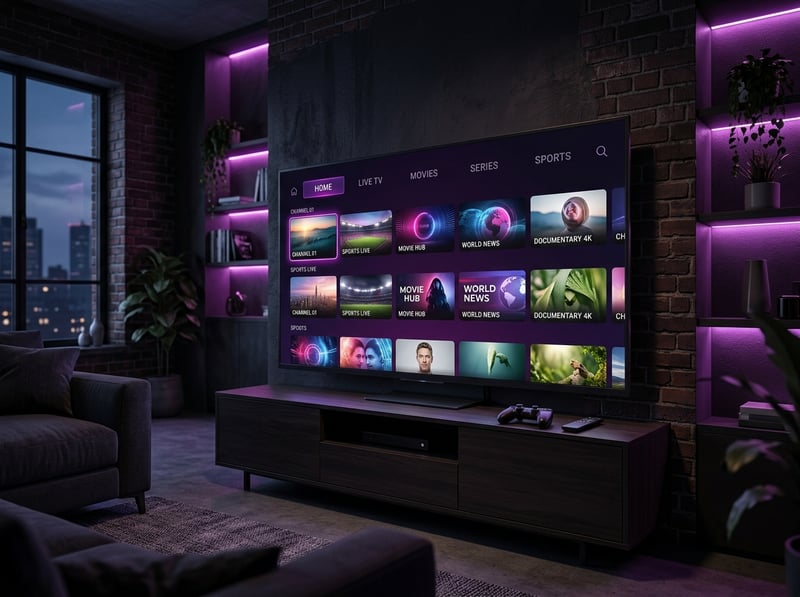
Here's a real-world scenario that plays out constantly: someone loads a massive M3U playlist, notices half their channels buffer, and assumes the IPTV service is bad. In reality, their ISP detected streaming traffic after 20 minutes and throttled the connection down to unusable speeds. Another common disaster is entering Xtream Codes credentials with an accidental space after the password. The app shows the playlist loading but delivers zero channels, and hours are wasted troubleshooting the wrong thing entirely.
Best VPNs to Stop ISP Throttling on Android IPTV
ISP throttling is the silent killer of otherwise perfect IPTV setups. When your provider detects sustained video streaming traffic, they often cap your bandwidth, usually after 15 to 30 minutes of viewing. A quality VPN encrypts your traffic so your ISP can't identify or throttle it. ExpressVPN offers the fastest servers for IPTV streaming, a MediaStreamer DNS feature for devices that can't run VPN apps natively, and a lightweight Android app that doesn't drain battery. NordVPN provides specialty servers optimized for streaming, double encryption options, and a kill switch that protects your connection if the VPN drops mid-stream. Surfshark is the best value for unlimited simultaneous connections, letting you run it on your Android phone, tablet, and TV box all at once under one subscription. Always connect to a VPN server geographically close to your IPTV provider's servers for the lowest added latency, since a server 5,000 miles away from your provider's infrastructure will add noticeable buffering even if your base internet speed is fine.
Common Setup Mistakes & How to Fix Them
These are the issues that fill IPTV forums and support tickets every single day. If your playlist loads but shows 0 channels, it is almost always an authentication error with Xtream Codes or an expired M3U link, so verify your credentials haven't changed since providers sometimes reset URLs during maintenance. If your EPG shows wrong time zones, go into EPG settings and manually set your time offset. If the app crashes on startup after an update, clear the app cache by going to Settings, then Apps, then your IPTV app, then Clear Cache, and restart. If 4K channels buffer but HD channels don't, your connection is fine for HD but insufficient for 4K streams which require 25 to 50 Mbps consistently, so switch to a wired Ethernet connection via USB adapter or move your Android device closer to your router.
TiviMate vs. IPTV Smarters: Which Application IPTV Android Wins?
Both apps dominate the Android IPTV space but they serve slightly different users. TiviMate is the premium choice for Android TV and Firestick users. Its EPG layout mirrors a traditional cable TV guide, it supports multiple playlists simultaneously, and the Panel feature lets you switch between providers in seconds. The premium version costs a one-time fee and is worth every penny. IPTV Smarters Pro is the better pick if your provider built their portal around the Xtream Codes API. The interface directly reflects your provider's channel groupings, series libraries, and VOD categories, and it's free and works excellently on Android phones and tablets. Televizo sits in between as a free option with a clean UI, good EPG support, and solid stability for users who don't want to commit to a paid app. The deciding factor is usually your provider, so ask them which app they officially support since a provider optimized for Smarters will give you a noticeably worse experience in TiviMate and vice versa.
Network Requirements for Smooth IPTV Streaming
Your application IPTV Android setup is only as good as the network feeding it. SD channels require 5 to 10 Mbps minimum with a stable connection. HD channels at 720p or 1080p need 15 to 25 Mbps with low jitter under 20ms. 4K and UHD channels require 25 to 50 Mbps dedicated to the streaming device and not shared with multiple other devices downloading simultaneously. A $15 USB-C to Ethernet adapter on your Android device eliminates Wi-Fi interference and drops ping dramatically, and this single change fixes buffering for the majority of users. Use Fast.com or Speedtest.net on your actual streaming device and not your phone to get accurate readings, since your router might show 200 Mbps but interference or a congested 2.4GHz band could mean your Android TV box is actually pulling only 18 Mbps.
Troubleshooting: Fixing Playlist and Stream Errors
When streams break, systematic troubleshooting beats random guessing every time. If you see the error Cannot play this video, try switching your player from Hardware to Software decoder within the app's stream settings since some older stream formats aren't compatible with hardware decoding on specific Android chipsets. If your playlist won't refresh, check your internet connection first and then verify your M3U URL hasn't expired since many providers rotate URLs every 30 to 90 days for security. If specific channels show a black screen with audio, this is almost always a codec issue and you should install VLC for Android and set it as your external player within the IPTV app. If your entire playlist disappears after reboot, some apps require you to log back in after updates, so enable the Save Credentials option and export a backup of your playlist configuration to local storage where available.

Getting your application IPTV Android setup dialed in properly is genuinely a one-time investment of an hour that pays off in years of buffer-free, cable-beating entertainment. Follow the steps above, dodge the common pitfalls, grab a reliable VPN if your ISP is aggressive, and then explore our full channel list and pricing plans to find the subscription tier that matches exactly what you want to watch.
Frequently Asked Questions
Ready to get started?
Try our service risk-free with a 24-hour free trial.
Related Articles
What is EPG in IPTV? Understanding the Complete Guide
Learn about EPG in IPTV and enhance your streaming experience.

Discover the Best IPTV Options for Canadian Drama TV Shows
Explore IPTV options to enjoy Canadian drama TV shows.
How to Set Up Firestick on TV Step by Step Guide for 2026
Setting up a new Amazon Fire TV Stick does not have to be frustrating. This complete 2026 walkthrough covers everything from physical HDMI connection and remote pairing to unlocking developer options, configuring optimal display settings, and installing the best streaming apps for buffer-free entertainment.