
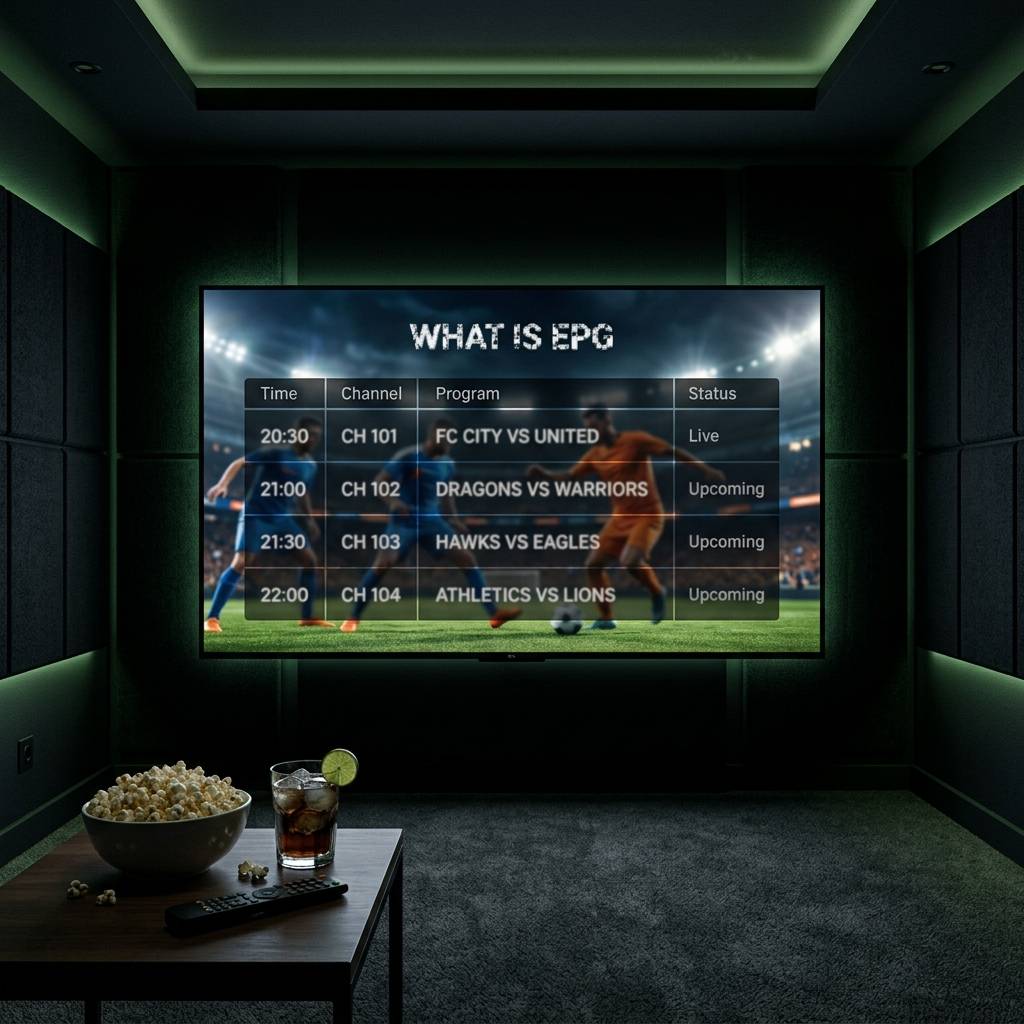
What is EPG in IPTV? Understanding the Complete Guide

Scrolling through hundreds of IPTV channels with zero idea what's currently playing or what comes on next is genuinely frustrating — and if you've been dealing with a blank program guide or channels showing "No Information," you already know how badly it breaks the streaming experience. The Electronic Program Guide, or EPG, is the feature that transforms your IPTV setup from a chaotic channel dump into something that actually feels like premium TV. This guide breaks down exactly what EPG is, how it works with your M3U playlist and Xtream Codes setup, and how to configure it properly so you never miss a live sports match, movie premiere, or favorite show again.
Without a properly functioning EPG, you lose access to some of the most powerful features your IPTV subscription offers. Configuring it correctly from the start is the single biggest upgrade most users can make to their daily streaming experience.
Core Concepts & Need-To-Know Info
- EPG stands for Electronic Program Guide: it's essentially a TV schedule database displayed inside your IPTV app, similar to the guide on a cable box.
- EPG data comes from an XML source: specifically a file format called XMLTV, which your IPTV provider or a third-party EPG aggregator hosts online as a URL you paste into your app.
- Your M3U playlist and EPG are separate: your M3U URL loads the channels; your EPG URL loads the schedule data. Both are needed for a complete setup.
- Channel mapping matters: EPG works by matching channel IDs in your M3U playlist to corresponding entries in the XMLTV file. If IDs don't align, channels show "No EPG" even when the URL is correct.
- Refresh intervals affect accuracy: EPG data should refresh every 24 hours at minimum; some providers push updates every 12 hours for live sports accuracy.
- Xtream Codes panels often include built-in EPG: if your provider uses Xtream Codes API, the EPG URL is sometimes embedded automatically in supported apps like TiviMate or IPTV Smarters Pro.
- Time zone settings can offset your schedule: if your guide shows programs two or three hours off, it's almost always a time zone mismatch in the app settings, not a broken EPG feed.
Step-by-Step Guide
- Step 1: Get Your EPG URL From Your Provider:
- Log into your IPTV provider's dashboard or customer panel and locate the EPG or XMLTV URL. It typically looks like http://yourprovider.com/epg.xml or ends in .xml.gz for compressed files. If your provider uses Xtream Codes, look for the "M3U & EPG" section — some panels display the EPG URL directly next to your M3U playlist link. If your provider doesn't offer one, note that down because you'll need a third-party source.
- Step 2: Open TiviMate (or Your Preferred IPTV App):
- Launch TiviMate on your Firestick, Android TV box, or Android TV. From the home screen, tap the gear icon to open Settings, then navigate to Playlists. Select your active playlist from the list. If you're using IPTV Smarters Pro, go to My Account > Edit Account and look for the EPG URL field.
- Step 3: Paste Your EPG URL Into the EPG Source Field:
- Inside TiviMate's playlist settings, scroll down to find the EPG section. Tap Add EPG Source, then paste your XMLTV URL into the field. Make sure there are no trailing spaces or broken characters — a single typo here causes the entire EPG to fail silently. Tap Save when done.
- Step 4: Set the Refresh Schedule:
- Still inside EPG settings, locate the Refresh Rate or Update Interval option. Set this to every 24 hours or enable automatic refresh. TiviMate allows you to schedule the update for a low-traffic time like 3:00 AM so it doesn't interfere with active streaming.
- Step 5: Adjust Your Time Zone:
- Go to Settings > General > Time Zone and select your correct local time zone. This step is skipped constantly by new users and causes the guide to display programs hours off from reality. Get this right and your live sports schedule will line up perfectly.
- Step 6: Force a Manual EPG Refresh:
- After saving everything, go back to the Playlists section, tap your playlist, and select Update EPG Now (or the equivalent refresh option in your app). Give it 60 to 90 seconds to download and process the XMLTV data. Once complete, navigate back to your channel guide — you should now see program names, descriptions, and timing across your channels.
- Step 7: Fix Unmapped Channels Manually:
- If some channels still show "No EPG," tap on the channel, go to its settings, and look for EPG Channel Mapping or Set EPG Channel. From the dropdown, search for the channel name and manually link it to the correct EPG entry. This is especially common with regional sports channels and international news networks.
A broken EPG doesn't just mean a missing channel guide — it cascades into broken DVR recordings, missing catch-up VOD entries, and a TiviMate layout that looks half-finished. These aren't minor inconveniences; they're the difference between an IPTV setup that works like a premium service and one that frustrates everyone who tries to use it.
Best VPNs to Stop ISP Throttling Affecting Your EPG
ISP throttling is real, and it hits IPTV connections hard — including the background processes that refresh your EPG data. ExpressVPN is the gold standard for Firestick and Android TV users, with a dedicated app on both platforms, consistently fast speeds, and MediaStreamer DNS built in for devices that can't run the full app. NordVPN offers a split tunneling feature on Android TV, which means you can route only your IPTV app through the VPN while keeping everything else on your regular connection — perfect for maintaining EPG refresh speed. Surfshark is the budget-friendly pick that doesn't sacrifice speed and allows unlimited simultaneous connections, which matters if you're running IPTV on multiple TVs in your home. Always connect to a VPN server in the same country as your IPTV provider's servers for the lowest latency and fastest EPG downloads, and enable the VPN kill switch feature so that if the VPN drops mid-refresh, your real IP isn't exposed to your ISP.
Common EPG Setup Mistakes & How to Fix Them
- Pasting the M3U URL into the EPG field: These are two completely different URLs. Your M3U link loads channels; your XMLTV link loads the schedule. Check your provider dashboard and copy them separately.
- Not refreshing after adding the EPG source: Adding the URL doesn't automatically trigger a download. You must manually force a refresh the first time, or the guide stays blank.
- Wrong time zone causing schedule offset: If every show in your guide is listed 3 hours early or late, go to your app's general settings and correct the time zone. This fixes it instantly.
- EPG URL expiring: Some IPTV providers rotate EPG URLs periodically for security. If your guide suddenly goes blank after working for months, log back into your provider portal and grab the updated URL.
- App cache corrupting EPG data: Clear your IPTV app's cache (Firestick: Settings > Applications > Manage Installed Applications > Your App > Clear Cache) and force a fresh EPG download.
TiviMate vs IPTV Smarters Pro: Which Handles EPG Better?
Both apps support EPG, but they handle it very differently — and choosing the right one changes your entire experience. TiviMate is the hands-down winner for EPG functionality: its guide layout is clean, it supports multiple simultaneous EPG sources, its channel mapping tools are the most intuitive available, and its DVR scheduling is tightly integrated with the program guide. The Premium version ($4.99/year) unlocks full EPG features including multi-EPG view. IPTV Smarters Pro pulls EPG data automatically when you enter your Xtream Codes credentials, making initial setup easier for complete beginners, however its EPG display is less polished and manual mapping is clunky compared to TiviMate. GSE Smart IPTV is a solid middle ground that supports XMLTV EPG imports and works well on Apple TV and iOS if you're not on a Firestick or Android TV box. For anyone on a Firestick or Android TV device who wants the best possible EPG experience, TiviMate Premium is worth every cent of that annual subscription.
Network Requirements for Reliable EPG Loading
EPG itself doesn't require a fast connection the way 4K streaming does, but your network setup still matters. A minimum 10 Mbps download speed is sufficient for EPG downloads, but live channel streaming alongside EPG refreshes in the background needs at least 25 Mbps to avoid interference. Use a wired Ethernet connection where possible, as wireless connections introduce latency spikes that can cause EPG refresh timeouts, especially for large XMLTV files. Switching your router's DNS from your ISP's default to Cloudflare (1.1.1.1) or Google (8.8.8.8) speeds up the resolution of EPG server URLs and reduces loading failures. Avoid refreshing EPG during peak streaming hours — schedule automatic EPG updates for late night or early morning to keep daytime streaming buttery smooth.
Troubleshooting: Fixing Playlist and EPG Errors
- "EPG Failed to Load" error: Confirm the URL is still active by pasting it directly into a browser on your phone or computer. If it downloads an XML file, the URL is fine and the issue is in your app settings. If it returns a 404 error, contact your provider for a new URL.
- Channels showing "No Information": This is almost always a channel mapping issue. The EPG source is loading correctly, but the channel IDs in your M3U don't match the EPG entries. Use your app's manual mapping tool to link them.
- EPG loads but times are wrong: Time zone mismatch. Fix it in app settings as described in Step 5 above.
- EPG works on some channels but not others: Regional or international channels are frequently missing from standard EPG sources. Search for a region-specific XMLTV source or ask your provider if they have an expanded EPG package.
- App crashes when loading EPG: Your XMLTV file may be too large for the app to handle. Ask your provider for a filtered EPG that covers only your subscribed channel package rather than their full server library.

Understanding what EPG is and getting it configured correctly is genuinely one of the most impactful things you can do for your entire IPTV setup — it's not just a cosmetic feature, as a properly working Electronic Program Guide unlocks DVR recording, catch-up TV, better navigation, and a viewing experience that feels cohesive and intentional rather than cobbled together. Get your EPG URL from your provider, drop it into TiviMate, set your time zone correctly, and let it refresh, then check out our full channel list and pricing plans to make sure you're getting the most out of every feature your subscription has to offer.
Frequently Asked Questions
Ready to get started?
Try our service risk-free with a 24-hour free trial.
Related Articles
Internet Speed for Streaming and How to Test Your Connection on Any Provider in 2026
A comprehensive guide to testing and optimizing internet connection speed for reliable streaming across all quality tiers. Covers ISP-specific speed testing tools, bandwidth requirements for HD and 4K, WiFi versus Ethernet performance, and troubleshooting techniques for eliminating buffering caused by insufficient throughput.
How to Set Up Firestick on TV Step by Step Guide for 2026
Setting up a new Amazon Fire TV Stick does not have to be frustrating. This complete 2026 walkthrough covers everything from physical HDMI connection and remote pairing to unlocking developer options, configuring optimal display settings, and installing the best streaming apps for buffer-free entertainment.

Discover the Best IPTV Subscriptions for Your Streaming Needs
Uncover the best IPTV subscriptions and tips for streaming.