
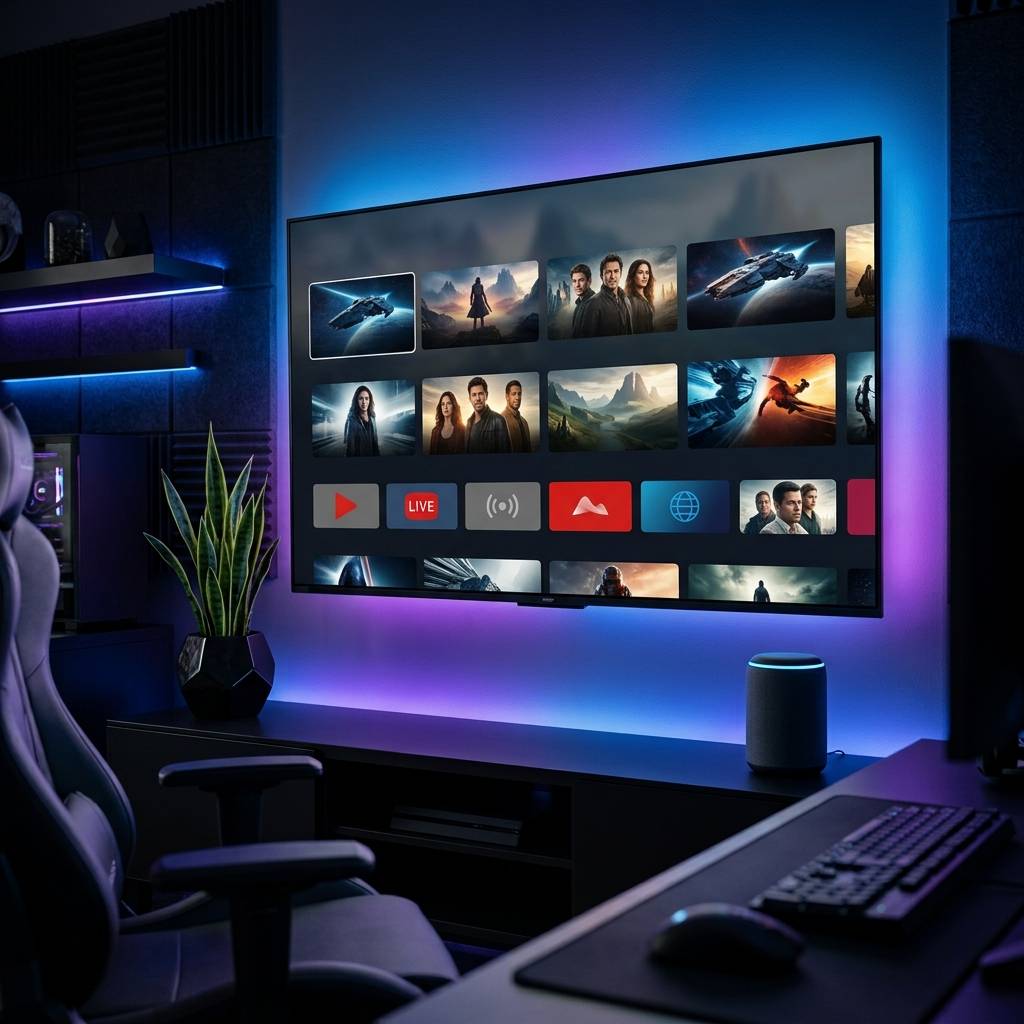
Fire TV Stick 4K Max Complete Setup and Performance Review 2026

Why the 4K Max Is the Definitive Streaming Dongle
For over a decade, streaming hardware manufacturers engaged in a race to the bottom, trimming manufacturing costs by releasing sluggish, under-powered plastic dongles equipped with microscopic storage capacities and bare-minimum processors. You would buy a cheap streaming stick, install four or five essential streaming platforms, and immediately receive persistent on-screen warnings announcing that your internal memory was critically depleted.
With the release of the second-generation Fire TV Stick 4K Max, Amazon finally addressed the long-standing complaints of power users and cord-cutters alike. By bumping base storage to 16GB, integrating a snappy 2.0 GHz quad-core silicon chipset, and implementing cutting-edge tri-band Wi-Fi 6E networking, this device bridges the performance chasm between budget twenty-dollar sticks and high-end set-top boxes like the Apple TV 4K or Nvidia Shield.
This guide looks at how the Fire TV Stick 4K Max handles demanding streaming: wireless throughput, multi-screen live broadcasts, and app launch speed compared with the standard 4K and Lite models. If you are debating whether the modest price premium for the Max is justified, this exhaustive technical breakdown will provide the empirical data you need to decide.
Hardware Specifications and What the Numbers Mean
Reading hardware specification sheets often feels like deciphering marketing jargon, but in the realm of high-bitrate video decoding, subtle architectural upgrades deliver massive real-world performance dividends.
At the heart of the 4K Max sits a MediaTek MT8696T quad-core processor clocked at 2.0 GHz, supported by an 850 MHz IMG GE9215 graphics processor and 2GB of high-speed LPDDR4 memory. Compare that to the standard Fire TV Stick 4K, which runs a 1.7 GHz processor and a slower graphics pipeline, and the operational gulf becomes apparent during daily navigation.
App launches that take four to six seconds on standard hardware occur in under two seconds on the Max. Scrolling through image-heavy poster walls inside streaming libraries is buttery smooth, with zero visual stutter or dropped animation frames. More importantly, the hardware includes native silicon hardware decoders for AV1, HEVC, H.264, VP9, and HDR10+, alongside full support for Dolby Vision and immersive Dolby Atmos audio pass-through.
The Game Changing Impact of 16GB Internal Storage
If you have ever owned an older 8GB streaming stick, you already know the frustration of storage exhaustion. Out of the advertised 8GB on legacy devices, the underlying operating system and pre-installed system applications consume roughly 3.5GB right out of the box, leaving you with barely 4.5GB of usable user storage.
Modern streaming apps are surprisingly bloated. High-performance video players, caching engines, and electronic program guides consume hundreds of megabytes of temporary cache files every time you stream. Within six months of daily use, a standard 8GB stick begins throwing storage error dialogues, freezing during video playback, and refusing to update system software.
The 4K Max doubles total storage to 16GB, providing over 11.5GB of actual free user partition space. You can comfortably download dozens of high-demand applications, maintain expansive local offline caches, and still have gigabytes of breathing room to ensure the operating system maintains peak flash memory read and write speeds. For anyone running advanced media hubs, this storage headroom alone makes the Max the only logical choice in the product family.
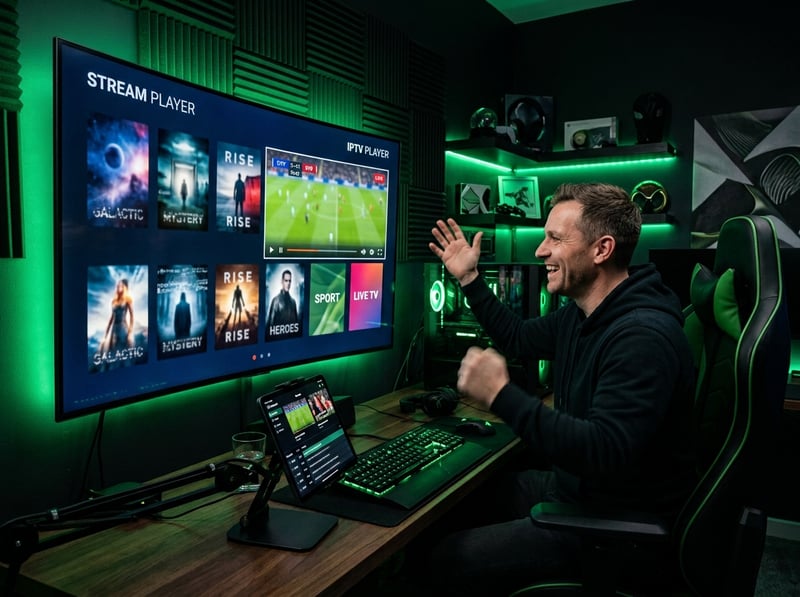
Wi Fi 6E Real World Speed and Latency Benchmarks
One of the flagship marketing claims of the 4K Max is support for Wi-Fi 6E networking. While standard wireless devices fight for airtime across congested 2.4 GHz and 5 GHz radio bands alongside smartphones, laptops, smart bulbs, and neighboring apartment networks, Wi-Fi 6E unlocks the pristine 6 GHz frequency spectrum.
With a Wi-Fi 6E mesh router, the 4K Max can reach very high local throughput, even through interior walls. More importantly, packet jitter dropped from an average of twelve milliseconds on standard 5 GHz Wi-Fi down to less than two milliseconds on the 6 GHz band.
Why does jitter matter so much for live video streaming? When you watch an on-demand movie, your media player can download a sixty-second buffer ahead of your current playback position. If a brief wireless packet drop occurs, the buffer covers the gap. Live linear broadcasts have almost zero buffer window. Ultra-low jitter and steady throughput ensure that high-action sporting moments never drop into buffering spinners right as a decisive score takes place.
Unboxing and Optimizing Your Initial Device Setup
Getting your new hardware running properly requires a few deliberate setup choices during initial onboarding to ensure you disable unnecessary background telemetry and maximize streaming throughput.
- Step 1 Connect Wall Power and HDMI Extender
- Always connect the hardware using the included wall adapter rather than a television USB port. Attach the short flexible HDMI extender cable included in the box to isolate the internal Wi-Fi antenna from electrical noise radiating off your television backplate.
- Step 2 Pair Remote and Complete Network Handshake
- Insert the included batteries into your remote. Follow the on-screen prompts to connect to your home Wi-Fi network, preferably selecting the 5 GHz or 6 GHz SSID rather than the slower 2.4 GHz band.
- Step 3 Execute Mandatory System Firmware Updates
- Allow the device to download and install initial software updates. Do not unplug the unit during this sequence. The device will restart automatically once the operating system reaches the latest software build.
- Step 4 Calibrate Television Audio and Power Controls
- The wizard will guide you through equipment control setup, automatically detecting your television and soundbar brand over HDMI-CEC to program your remote volume and power toggles.
- Step 5 Disable Intrusive Data Monitoring
- Navigate to Settings, select Preferences, and open Privacy Settings. Turn off Device Usage Data, turn off Collect App Usage Data, and disable Interest-Based Ads. This frees up background processor cycles for media playback.
How the 4K Max Dominates High Bitrate IPTV Streaming
If your primary entertainment pipeline centers around live sports, international feeds, and expansive video on demand through specialized streaming applications, the Fire TV Stick 4K Max is an absolute revelation compared to older hardware.
High-capacity IPTV playlists containing over 20,000 live channels and 80,000 VOD titles choke budget streaming sticks. When an entry-level processor attempts to parse massive M3U database files or cache comprehensive electronic program guides, memory exhaustion triggers an immediate application crash back to the home dashboard.
With its 2.0 GHz quad-core processor and 2GB of high-speed system RAM, the 4K Max handles multi-megabyte playlist synchronization effortlessly. Channel switching speed sits consistently under 1.5 seconds across high-bitrate 1080p feeds. If you ever run into remote issues or unexpected software freezing, consult specialized tutorials on Fire TV remote troubleshooting and Firestick system diagnostic fixes.
Furthermore, the upgraded GPU handles multi-screen split-screen viewing without breaking a sweat. In advanced media players like TiviMate, you can partition your television screen into four simultaneous 1080p live feeds, creating a dedicated sports bar command center right in your living room.

Comparing the 4K Max Against Roku and Apple TV
Deciding between streaming platforms often comes down to balancing operating system openness against ecosystem simplicity. How does the 4K Max stack up against its primary competitors in 2026?
Compared to a comparable Roku Streaming Stick 4K, the Fire TV Stick 4K Max offers vastly superior sideloading flexibility. Roku runs a walled-garden proprietary operating system that forbids installing third-party APK packages. On the Firestick, you can easily enable developer options, install specialized utilities, and run open-source media engines without jumping through artificial manufacturer hoops.
Compared to the Apple TV 4K, the Apple box undeniably packs more raw processing horsepower with its desktop-grade silicon chips. However, the Apple TV 4K costs roughly three times as much as the 4K Max, lacks support for certain open-source audio pass-through protocols, and relies on an expensive proprietary remote. For the overwhelming majority of cord-cutters, the 4K Max delivers ninety percent of the Apple TV performance at one-third the retail price.
Is the Fire TV Stick 4K Max Worth the Upgrade
If you currently stream on a legacy Firestick Lite, a standard Fire TV Stick from 2020 or earlier, or an entry-level television with sluggish built-in smart apps, upgrading to the second-generation Fire TV Stick 4K Max is one of the most noticeable improvements you can make to your home entertainment setup.
The combination of snappy menu navigation, expansive 16GB onboard storage, uncongested Wi-Fi 6E connectivity, and seamless handling of high-bitrate live video makes every interaction feel instantaneous. It transforms streaming from a clunky, compromised chore into a truly fluid, modern television experience.
For additional network optimization strategies to keep your high-speed streams operating without buffering, explore technical guides on fixing IPTV buffering and managing router traffic.
Ready to unlock tens of thousands of buffer-free live sports channels, international networks, and cinematic 4K video on your newly optimized Fire TV Stick 4K Max? Explore flexible, transparent subscription pricing packages to find the ideal tier for your household, and connect with dedicated technical support specialists to get your setup streaming at maximum performance today.
Frequently Asked Questions
Ready to get started?
Try our service risk-free with a 24-hour free trial.
Related Articles
Discover How to Access Canadian TV Shows with IPTV: Your 2026 Guide
Unlock your favorite Canadian TV shows with IPTV solutions.
Internet Speed for Streaming and How to Test Your Connection on Any Provider in 2026
A comprehensive guide to testing and optimizing internet connection speed for reliable streaming across all quality tiers. Covers ISP-specific speed testing tools, bandwidth requirements for HD and 4K, WiFi versus Ethernet performance, and troubleshooting techniques for eliminating buffering caused by insufficient throughput.
How to Fix IPTV Buffering: The 5-Minute Anti-Freeze Blueprint (2026)
Proven 2026 troubleshooting guide to diagnose and eliminate IPTV buffering on Firestick, Smart TVs, and Android boxes permanently.