

Firestick VPN Setup Guide and How to Stop ISP Throttling in 2026

The Hidden Cause Behind Primetime Streaming Buffering
You pay for a premium high-speed fiber internet subscription delivering five hundred megabits of downstream bandwidth. During standard daytime hours, web pages open instantly, large software files download in seconds, and speed test gauges peg the maximum capacity of your home network. Yet on Friday and Sunday evenings, right as you settle in to watch an intense championship match or a live pay-per-view title fight, your video stream suddenly freezes. The dreaded loading spinner appears across your screen, looping endlessly while the game continues without you.
Your first instinct is to blame your media player or assume your streaming host server has crashed. In reality, the culprit behind eighty percent of primetime live broadcast stalls is sitting squarely within your domestic telecommunications provider routing infrastructure. Internet service providers routinely engage in aggressive, automated bandwidth throttling designed to conserve their transit capacity during peak evening hours.
Understanding how telecom operators inspect and restrict video traffic is the first step toward reclaiming your network independence. By deploying a properly configured vpn iptv tunnel directly on your media streaming hardware, you wrap all incoming and outgoing data packets in unbreakable military-grade encryption. This technical walkthrough explains how to install a VPN on your streaming stick, choose the fastest encryption protocols, and tune your connection for smooth, unthrottled 4K playback.
How Internet Service Providers Restrict Video Bandwidth
To understand why an encrypted connection restores streaming stability, you must grasp how domestic internet providers manage network traffic. When data travels between your home router and the broader internet, it flows through provider routing switches in unencrypted digital packets.
Modern internet conglomerates deploy sophisticated Deep Packet Inspection systems across their distribution gateways. This surveillance software scans incoming and outgoing packet headers in real time. The moment the software detects a steady, sustained stream of high-bitrate video packets originating from unpartnered streaming servers, it categorizes that traffic as non-essential entertainment data.
Rather than upgrading their physical fiber backbones to support peak consumer demand, provider automated algorithms apply selective bandwidth caps to those specific data streams. While your speed test utility might still report high download numbers because speed test servers are whitelisted, your actual video transport pipeline is quietly throttled down to three or four megabits per second. This artificial bottleneck chokes off your video buffer, resulting in persistent stutter and devastating frame drops.
Why Cryptographic Tunnels Defeat Automated Packet Inspection
A virtual private network fundamentally alters the relationship between your streaming hardware and your internet service provider. Instead of broadcasting unencrypted data packets across the provider network, the software constructs an encrypted tunnel between your streaming stick and a secure remote server.
This encryption operates using advanced mathematical ciphers, typically 256-bit AES or ChaCha20 encryption. When your provider automated packet inspection software attempts to analyze your data, it encounters only an indecipherable wall of scrambled cryptographic noise. The provider cannot identify what type of data is passing through, cannot view the destination server address, and cannot distinguish high-definition video packets from routine encrypted web browsing.
Because the automated traffic-shaping filters cannot identify your data as a streaming video protocol, the throttling rules fail to trigger. Your connection flows through the provider network at full, unconstrained speeds, allowing your media player to maintain a full video buffer and deliver fluid, uninterrupted high-definition entertainment.
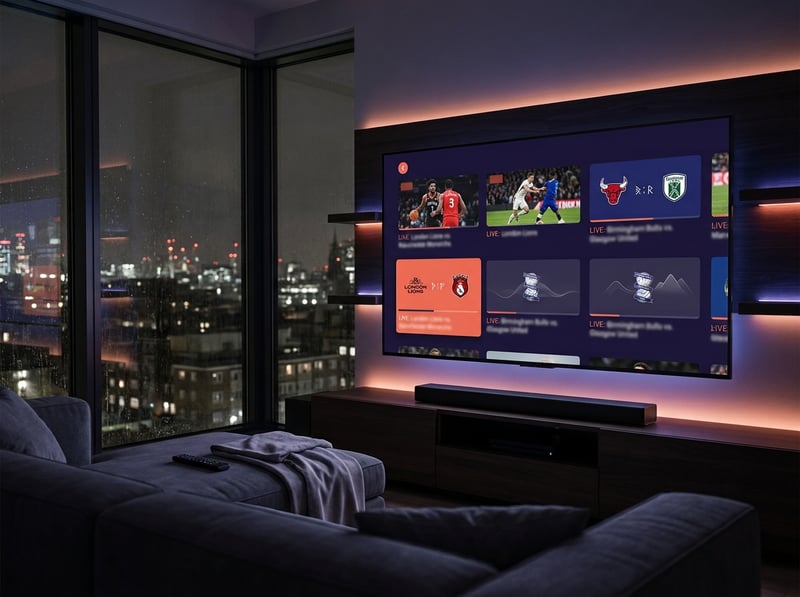
Step by Step VPN Installation on Amazon Streaming Devices
Configuring an encrypted connection on your media stick takes less than five minutes and requires zero complex networking knowledge. Premium providers maintain native applications certified directly within the official television app store.
- Step 1 Locate the Application in the Official Store
- From your primary home dashboard, navigate to the Search magnifying glass icon. Type the name of your chosen virtual private network service. Select the official application icon from the search results grid.
- Step 2 Download and Install the Software
- Click the Get or Download button. The package installs directly into internal storage within thirty seconds over a standard home connection.
- Step 3 Authenticate Your Account Credentials
- Launch the newly installed application. You will be prompted to sign in using your account email and password, or by scanning an on-screen QR code with your smartphone to complete instant web authentication.
- Step 4 Accept the System Connection Request
- When you initiate your first connection attempt, the streaming stick operating system will present an official security dialogue stating that the application wants to set up a VPN connection. You must select OK. This grants the software permission to route network traffic through the local TUN interface.
- Step 5 Enable Automatic Startup Preferences
- Navigate to the settings menu inside the application. Toggle Auto-Connect to On and enable Launch on Device Boot. This ensures that your streaming hardware is automatically shielded every time your television turns on.
Selecting the Fastest Protocol for High Bitrate 4K Feeds
Not all encryption protocols are engineered equally. The specific protocol you select inside your application settings dictates how much processor overhead is consumed and directly impacts your maximum streaming bandwidth.
For over a decade, OpenVPN was the industry standard. While OpenVPN is exceptionally secure, its complex legacy codebase requires substantial processor cycles to encrypt and decrypt packets. On a low-power quad-core streaming stick processor, running OpenVPN can cause thermal throttling, high processor utilization, and a thirty to forty percent drop in maximum network throughput.
Whenever possible, configure your application to use WireGuard or proprietary modern equivalents like Lightway. WireGuard operates on a streamlined, modern cryptographic architecture consisting of fewer than four thousand lines of code. It executes encryption tasks with microscopic processor overhead, runs cool on compact television dongles, and delivers lightning-fast connection handshakes. WireGuard typically delivers clearly higher sustained bandwidth than OpenVPN, making it the best choice for buffer-free 4K playback.
Optimizing Server Selection for Minimal Latency and High Speed
A common mistake among streaming beginners is selecting server locations positioned thousands of miles away on other continents. Unless you are specifically attempting to bypass a foreign geographic restriction, choosing an unnecessarily distant server severely degrades your streaming performance.
Data transmission across the internet is constrained by the laws of physics. Every hundred miles between your living room and the remote server adds physical latency and increases the number of intermediate network routing hops. If you reside in New York and connect to a server in Tokyo to stream domestic news, your data must traverse the Pacific Ocean twice, driving your ping times past two hundred milliseconds and introducing noticeable stream latency.
To achieve peak streaming velocity, always select a server node located geographically closest to your physical residence. Connecting to a server in your home city or an adjacent metropolitan hub ensures ping times remain under thirty milliseconds while preserving full downstream bandwidth for high-velocity sporting feeds.
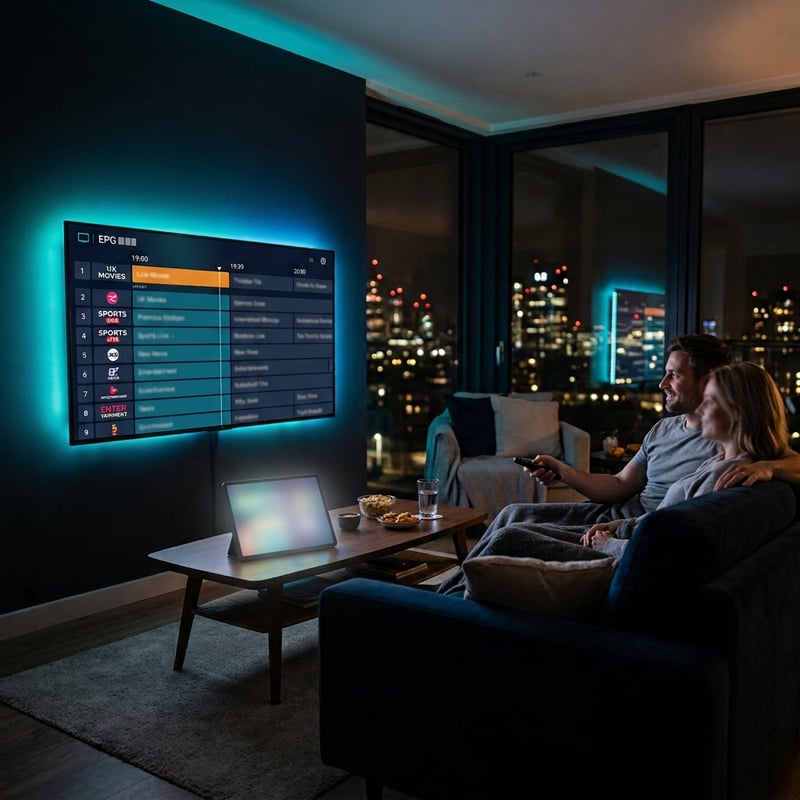
Using Split Tunneling to Conserve System Resources
One of the most valuable advanced features available in modern streaming applications is split tunneling. This network management tool allows you to designate precisely which applications route through the encrypted tunnel and which applications connect directly through your unencrypted home network.
Certain domestic streaming applications and local banking utilities actively block incoming connections originating from known data center IP addresses. If you route your entire streaming stick through a single encrypted tunnel, these domestic platforms may display geographic error messages or refuse to load.
By enabling split tunneling inside your settings menu, you can configure your dedicated media players and live broadcast software to route exclusively through the encrypted tunnel, shielding your live sports and international channels from provider inspection. Meanwhile, domestic entertainment apps and system software update utilities bypass the tunnel entirely, communicating through your standard local connection without triggering security blocks.
Troubleshooting Connection Drops and Slow VPN Speeds
While modern encrypted networks are remarkably resilient, occasional routing bottlenecks can cause temporary performance dips. If your stream stutters while connected, execute this targeted diagnostic sequence to restore peak velocity.
- Step 1 Switch to an Alternate Nearby Server
- Server nodes occasionally experience localized congestion when thousands of users connect simultaneously. Open your application server list and select an alternate city or secondary server cluster in your immediate geographic region to distribute your traffic onto a fresh bandwidth pipeline.
- Step 2 Adjust Maximum Transmission Unit Packet Size
- If your connection drops packets over home Wi-Fi, the MTU packet size may exceed your router fragmentation threshold. Navigate to application settings and toggle MTU from Auto to Manual, adjusting the value to 1420 or 1380 to eliminate packet fragmentation.
- Step 3 Clear Application Cache Files
- Streaming video players accumulate substantial temporary memory files during daily operation. Access device Settings, select Applications, open Manage Installed Applications, and clear cache on both your video player and your connection utility to refresh system RAM.
- Step 4 Toggle Kill Switch Settings
- If your internet suddenly stops flowing entirely, your application security Kill Switch may have engaged following a momentary wireless hiccup. Disconnect and reconnect the software to clear the software network freeze.
Final Recommendations for a Flawless Encrypted Streaming Setup
Deploying a virtual private network on your media streaming hardware is the ultimate equalizer in the modern home entertainment landscape. You no longer need to accept arbitrary evening bandwidth throttling, unfair telecommunications surveillance, or frustrating buffering loops that disrupt your weekend viewing.
By investing in a reputable, privacy-focused service that supports lightweight modern protocols, selecting geographically proximal server clusters, and utilizing split tunneling to optimize hardware efficiency, you construct a resilient digital foundation that protects your household privacy while maximizing streaming velocity.
Take control of your home entertainment network, eliminate provider interference permanently, and enjoy crystal-clear, uninterrupted 4K broadcasting exactly as it was intended to be experienced. Your living room screen is ready for flawless, buffer-free entertainment on your own terms.
Frequently Asked Questions
Ready to get started?
Try our service risk-free with a 24-hour free trial.
Related Articles

Discover How to Access Canadian TV Shows with IPTV: Your 2026 Guide
Unlock your favorite Canadian TV shows with IPTV solutions.
How to Get IPTV: The Complete Guide for 2026 Enthusiasts
Discover how to get IPTV and troubleshoot issues effectively.
The Ultimate Guide to IPTV Streaming Devices: Tips and Tricks
Master your IPTV streaming devices with expert tips.