
How to Install & Setup TiviMate on Firestick (2026 Guide)

The first time I tried to install TiviMate on my Firestick, I spent 40 minutes doing it wrong. I was searching for it directly in the Amazon App Store like a regular app, couldn't find it, and assumed it wasn't available for Fire TV devices. Almost gave up and settled for a worse player that was in the store. Turns out TiviMate isn't listed in Amazon's store — you have to sideload it. Once I figured that out, the actual installation took about three minutes. Three minutes. All that frustration for something that's genuinely simple once you know the steps. If you're trying to install TiviMate on Firestick and feeling confused by the process, I get it. The sideloading thing throws people off because it sounds technical when it's really not. I've done this on four different Firesticks now — my living room, bedroom, my parents' house, and a friend's place — and it's the same straightforward process every time. Here's exactly how to do it, plus everything you need to set up after installation so TiviMate runs perfectly from day one.
TiviMate has been the go-to IPTV app for Firestick users for years now, and in 2026 it's still miles ahead of every alternative. But none of that matters if you can't get it installed. The process is dead simple once someone walks you through it properly — and most guides online either skip steps, use outdated screenshots, or assume you already know what sideloading means. This one doesn't.
Core Concepts & Need-To-Know Info
- Sideloading: This just means installing an app from outside Amazon's official app store. You download the app file (called an APK) and install it manually. Amazon actually supports this — there's a setting for it built right into the Firestick. It's not a hack, it's not risky, and it doesn't void your warranty. You're just downloading an app from a different source.
- APK File: An APK is an Android app package file. It's the installation file for any Android app. Since the Firestick runs a modified version of Android called Fire OS, it can install APK files just like an Android phone would. TiviMate's APK is what you'll download and install.
- Downloader App: This is a free app available in the Amazon App Store that lets you type in a URL and download files directly to your Firestick. It's the standard tool everyone uses for sideloading. Made by AFTVnews, been around for years, completely safe.
- Xtream Codes and M3U: After installing TiviMate, you'll need to add your IPTV provider's playlist. Xtream Codes uses a server URL, username, and password. M3U uses a single playlist URL. TiviMate supports both. I recommend Xtream Codes if your provider offers it — faster loading, better EPG sync, more reliable reconnections.
- TiviMate Free vs Premium: The free version lets you add one playlist and gives you access to basic features. Premium costs about 5 dollars per year and unlocks multiple playlists, catch-up TV, recording, and a few other things. For daily IPTV use, premium is worth it. But the free version is fully functional for testing with a single provider.
Step-by-Step Guide to Install TiviMate on Firestick
- Step 1: Enable Developer Options on Your Firestick
- From the Firestick home screen, go to Settings. Select My Fire TV. Look for Developer Options. If you don't see it — and on newer Firestick models it's hidden by default — go to My Fire TV, then About, and click on your Fire TV device name seven times in a row. You'll see a message saying you're now a developer. Go back to My Fire TV and Developer Options will now be visible. This step takes 15 seconds and you only need to do it once.
- Step 2: Turn On Install Unknown Apps
- Inside Developer Options, find Install Unknown Apps. You'll see a list of apps. Find Downloader in that list and toggle it to ON. This permission tells your Firestick that the Downloader app is allowed to install APK files. Without this, your Firestick will block the TiviMate installation and you'll sit there wondering why it isn't working. If Downloader isn't in the list yet, that's fine — it'll appear after you install it in the next step. Just come back here and enable it before you try to download TiviMate.
- Step 3: Install the Downloader App
- Go back to the Firestick home screen and open the App Store. Search for Downloader. It's the orange app icon by AFTVnews. Download and install it. Free, takes about 30 seconds. Open it once to accept the permissions it asks for. If you already have Downloader installed from a previous sideload, make sure it's updated to the latest version. Older versions occasionally have issues downloading larger APK files.
- Step 4: Download TiviMate
- Open Downloader. You'll see a URL bar at the top. Type in the TiviMate download URL — the official one is tivimate.com. Navigate to the download section and select the latest APK version for Android TV. The file will start downloading. It's usually around 15 to 20 MB so it takes seconds on any decent connection. Once the download finishes, a prompt will appear asking if you want to install the app. Tap Install.
- Step 5: Install and Launch TiviMate
- After tapping Install, the Firestick will process the APK and install TiviMate. This takes about 10 to 15 seconds. Once it's done, you'll see two options — Open or Done. Tap Open to launch TiviMate immediately. If you tap Done, you can find TiviMate later in your Apps and Channels row on the Firestick home screen. I usually long-press the TiviMate icon and select Move to Front so it's the first app I see every time.
- Step 6: Add Your IPTV Playlist
- When TiviMate opens for the first time, it'll ask you to add a playlist. Tap Add Playlist. Choose Xtream Codes if your provider gave you a server URL, username, and password. Choose M3U Playlist if you received a single URL link. Copy and paste your credentials from wherever your provider sent them — email, website dashboard, or message. Do not type them manually. I've set up TiviMate on four Firesticks and the one time I retyped a server URL instead of pasting, I got a blank channel list and spent 20 minutes troubleshooting something that was just a missing letter in the URL.
The fake APK thing happened to someone I know personally. He found a site offering "TiviMate Premium unlocked" for free, installed it, and it looked completely normal. Same interface, same features. Two weeks later his IPTV provider told him someone was accessing his account from overseas. Turned out the fake app was sending his Xtream Codes credentials to a third party. He had to factory reset his Firestick, get new credentials from his provider, and reinstall everything from scratch. Saved five dollars, lost hours of his time and his account security. Just get the real version.
Configuring TiviMate for the Best Performance on Firestick
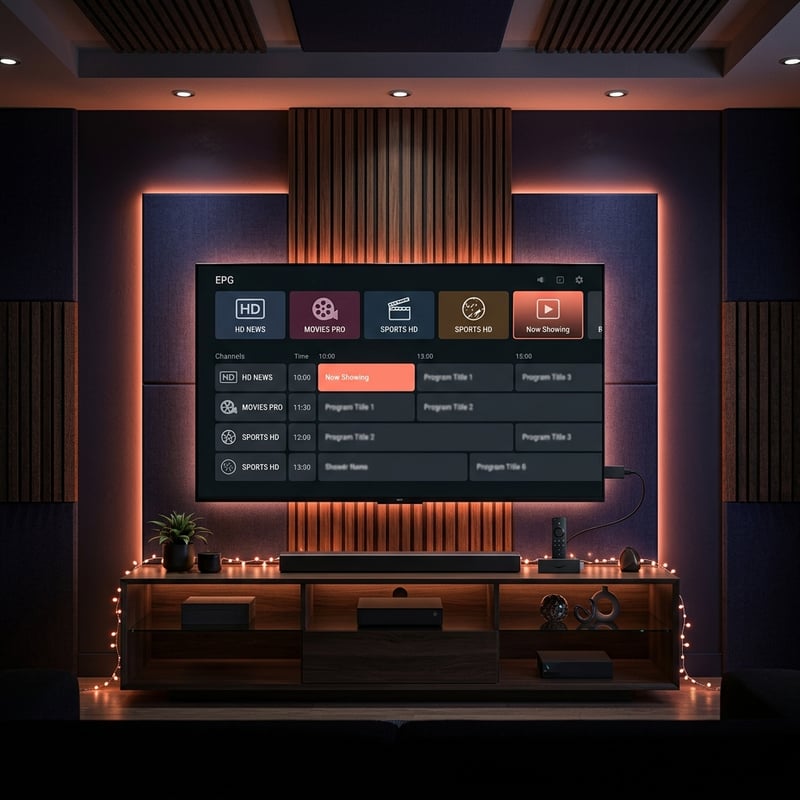
Installing TiviMate is only half the job. The default settings work fine, but a few tweaks make the experience noticeably better on Firestick. Go to Settings, then Player. Set your buffer size to 3 seconds for optimal playback (see our anti-freeze buffering blueprint for advanced player engine tweaks). I've tested everything from 1 second to 10 seconds and 3 is the sweet spot — fast enough that channel switching doesn't feel delayed, but enough of a cushion to smooth out minor network hiccups. Under Decoder, leave it on Hardware. The Firestick 4K Max handles hardware decoding efficiently for most streams. If a specific channel gives you a black screen, switch that channel to Software decoder. In the EPG section, set Auto Update to every 4 hours. This keeps your TV guide accurate without constantly hammering your provider's EPG server. Enable channel logos if you want the visual polish — TiviMate loads them from your provider and they make browsing feel like real cable. Under General settings, disable the screensaver timer or set it high enough that it won't kick in during a movie. Nothing more annoying than the screen dimming 30 minutes into a film.
TiviMate Premium: What You Get and Whether It's Worth It
I ran TiviMate free for about two weeks before upgrading to premium. Here's my honest take on what the upgrade gives you. Multiple playlist support is the headline feature. Free only allows one playlist. Premium lets you add several, which is great if you use more than one IPTV provider or want to keep a backup service loaded and ready. Catch-up TV is the second big one. If your provider supports it, premium lets you rewind live channels up to 72 hours. I use this constantly for matches I miss and it works flawlessly. Recording is available too — you can record live TV directly to a USB drive connected to your Firestick. I don't personally use this much but it's there if you need it. Scheduled recordings are also a premium feature. You set it and TiviMate records the show automatically. The interface customization options expand with premium too — more color themes, layout adjustments, and grouping options. At 5 dollars per year, which breaks down to less than 50 cents a month, it's the easiest upgrade decision in all of IPTV. I genuinely can't think of a reason not to get it unless you're only testing with one provider temporarily.
Troubleshooting Common TiviMate Installation Problems on Firestick
If the APK download fails in Downloader, check your internet connection first. Then make sure your Firestick has enough storage space — go to Settings, My Fire TV, About, and check Storage. If you're under 500MB free, uninstall some apps you don't use. A full Firestick can't install new apps. If the installation itself is blocked, you forgot to enable Install Unknown Apps for Downloader. Go back to Settings, My Fire TV, Developer Options, Install Unknown Apps, and make sure Downloader is toggled ON. If TiviMate installs but crashes immediately on launch, you might have an incompatible APK version. Make sure you're downloading the Android TV version, not the mobile phone version. They're different builds and the phone version won't run correctly on Firestick. If your playlist loads but channels won't play, go to Settings, Player, and try switching between ExoPlayer and the built-in system player. Also try toggling the decoder. And if the EPG won't load at all, go to Settings, EPG, and tap Update Now. If it's still empty after a manual refresh, your provider's EPG URL might be down temporarily — give it a few hours and try again.
Using TiviMate With a VPN on Firestick
You should absolutely run a VPN alongside TiviMate on your Firestick. ISP throttling is the number one cause of IPTV buffering that people don't realize is happening. Bell, Rogers, Telus, Comcast — they all detect IPTV traffic and slow it down during peak hours. A VPN hides what you're streaming so your ISP can't throttle it. I've been running ExpressVPN on my Firestick for over a year now. It has a native Fire TV app, so you just install it from the Amazon App Store, log in, connect to a nearby server, and then open TiviMate. That order matters — VPN first, then TiviMate. If you open TiviMate before connecting the VPN, the app caches your unprotected connection details and sometimes the playlist won't reload properly when the VPN kicks in. NordVPN works well too and their dedicated IP option prevents IPTV servers from blocking shared VPN addresses. Surfshark is the budget pick with unlimited devices. The only downside of running a VPN on Firestick is a very minor increase in processing load. On the Firestick 4K Max, I've never noticed any performance impact. On older Firestick models with less RAM, you might see slightly slower channel switching with the VPN active, but it's a worthwhile trade-off for eliminating throttling.
Keeping TiviMate Updated on Firestick
Since TiviMate isn't from the Amazon App Store, it won't update automatically. You have to check for updates manually, and honestly most people forget. Here's what I do. About once a month, I open Downloader and go back to the TiviMate website. If there's a newer version available, I download the new APK and install it right over the existing one. It updates the app without erasing your playlists, favorites, or settings. Everything stays intact. Don't uninstall the old version first — just install the new APK on top. If you uninstall first, you lose all your configuration and have to set everything up from scratch. I made that mistake exactly once and spent 30 minutes reconfiguring my channel favorites and EPG settings. Never again. TiviMate updates matter too. The developer pushes fixes for codec issues, playback bugs, and compatibility improvements regularly. I've had channels that wouldn't play on an older version suddenly work perfectly after updating. Running a version that's three or four months old is asking for problems you don't need.
Now you know exactly how to install TiviMate on Firestick, configure it for the best performance, and keep it running smoothly long-term. The whole process takes less than 10 minutes and the result is an IPTV experience that feels like premium cable at a fraction of the price. Ready to load up TiviMate with a service that actually delivers? Check out our channel list and pricing plans and start streaming tonight.
Frequently Asked Questions
Ready to get started?
Try our service risk-free with a 24-hour free trial.
Related Articles
Discover the Best IPTV App for Apple TV in 2026
Find the best IPTV app for your Apple TV now!

Discover the Best Ways to Access Canadian TV Series on IPTV
Unlock the world of Canadian TV series on IPTV.
Discover How to Set Up IPTV on Roku TV: A Complete Guide
Guide to set up IPTV on Roku TV with tips and tricks.