
IPTV Smarters Pro on Samsung TV Complete Setup Guide 2026

Many Samsung Smart TV owners do not want a Firestick plugged in — too many remotes, too many inputs, too confusing. They want IPTV running directly on the TV without any extra boxes, sticks, or cables. IPTV Smarters Pro was the answer. It installs from the Samsung app store, and once the provider credentials are entered, live channels can be playing within 3 minutes using only the Samsung remote. No second device. No HDMI switching. No learning curve. Just their familiar Samsung interface with a new app that delivered 20,000 channels. If you own a Samsung Smart TV and want the simplest possible IPTV setup, this guide walks you through every step.
Step 1 Find and Install IPTV Smarters on Samsung TV
- Open the Samsung App Store
- Press the Home button on your Samsung remote. Navigate to Apps or Smart Hub depending on your TV model year. This opens the Samsung app store where all available applications are listed.
- Search for the App
- Select the Search icon (magnifying glass) in the app store. Type IPTV Smarters using the on-screen keyboard. The app should appear in the search results as IPTV Smarters Pro with the familiar blue and white logo.
- Install the App
- Select IPTV Smarters Pro from the results. Press Install. The download takes 30 to 60 seconds depending on your internet speed. Once installed, the app appears on your Samsung home screen app row.
- If the App Does Not Appear
- Try alternative search terms: Smarters Pro, IPTV Smarters, or Smarters Lite. If no version appears, the app may be unavailable in your Samsung store region. Jump to the alternatives section below for other options.
Step 2 Log In With Your Xtream Codes Credentials
- Launch the App
- Open IPTV Smarters Pro from your Samsung home screen. The app takes 5 to 10 seconds to load on first launch.
- Select Login Method
- On the main screen tap Add New User or the plus icon. Select Login with Xtream Codes API. Do not select Load Your Playlist or File/URL. The Xtream Codes option gives you automatic channel organization, categories, and EPG.
- Enter Your Information
- In the Name field type anything to identify this connection. Something like My IPTV is fine. In the Server URL field paste your provider server URL including the port number. In the Username field enter your username. In the Password field enter your password.
- Important Tip for Samsung Remote Typing
- Typing URLs with the Samsung remote is painfully slow. Use the Samsung SmartThings phone app instead. Open SmartThings on your phone, connect to your TV, and use your phone keyboard to type directly into text fields on the TV screen. This saves several minutes of frustrating on-screen keyboard navigation.
- Add User
- Press Add User or Login. Smarters connects to your provider server, authenticates your credentials, and downloads your channel list. This takes 1 to 2 minutes. Your channels appear organized in categories on the main screen.
Step 3 Navigate and Watch Channels
- Browse Categories
- Your channels are sorted into categories like Live TV, Movies, Series, Sports, News, Entertainment, and Kids. Use the Samsung remote directional pad to browse categories and select channels.
- Open the EPG
- Navigate to the TV Guide or EPG section within Smarters. The programme guide shows current and upcoming programmes for each channel. Use it to see what is playing now and what is scheduled next.
- Play a Channel
- Select any channel and press OK on your Samsung remote. The stream starts within 2 to 4 seconds. Use the channel up and down buttons on your remote to switch between channels sequentially.
- Adjust Volume and Audio
- Volume control works through your Samsung TV remote as normal. Audio settings within Smarters let you switch between available audio tracks if your provider offers multiple language options per channel.
Optimizing Smarters Performance on Samsung TV
Samsung TVs have less processing power than dedicated streaming devices like the Firestick 4K Max. These adjustments help Smarters run smoother on Samsung hardware.
- Close background apps Samsung TVs run multiple apps in the background consuming RAM. Before launching Smarters, press and hold the Home button, then close all other open apps. This frees up memory for smoother channel switching.
- Use wired ethernet Samsung TVs with an ethernet port benefit significantly from a wired connection. Plug a network cable directly from your router to the TV. Wired connections deliver more stable bandwidth than WiFi which reduces buffering during peak evening hours.
- Update your TV firmware Go to Settings, then Support, then Software Update. Install any available updates. Samsung periodically releases Tizen updates that improve app performance and fix compatibility issues.
- Restart the TV regularly Samsung TVs accumulate cached data that slows performance over time. Restart your TV at least once per week by unplugging it for 30 seconds. This clears the memory cache and improves app responsiveness.
- Reduce channel list load If your provider delivers 25,000+ channels and Smarters feels sluggish, ask your provider if they offer a lighter regional playlist. A smaller channel list loads faster and puts less strain on the Samsung processor.
Troubleshooting Smarters on Samsung TV
- Login failed error Copy-paste your credentials instead of typing manually. Verify the server URL includes the port number. Check for trailing spaces after pasting. If credentials are correct and login still fails, your provider server may be temporarily down.
- App not in Samsung store IPTV Smarters has been removed from some regional Samsung stores. Try searching for Smarters Lite which may still be available. Alternatively install Smart IPTV from the Samsung store which uses M3U playlist upload instead of Xtream Codes login.
- Channels load but show black screen The Samsung Tizen video decoder may not support certain stream formats from your provider. Try switching to a different channel to confirm it is not a provider-side issue. If multiple channels show black screen, your TV firmware may need updating.
- App crashes frequently Uninstall Smarters completely from Settings then Apps. Restart the TV by unplugging for 30 seconds. Reinstall from the app store. If crashes persist, the TV may have insufficient RAM for the current Smarters version.
- Buffering during evening hours Switch to a wired ethernet connection. Close all other apps running on the TV. If buffering continues, the issue is likely your internet connection speed or your provider server capacity during peak hours, not the app itself.
- EPG not showing programmes Some provider configurations do not push EPG data correctly through Smarters on Samsung. Try deleting your user profile in Smarters and re-adding it with the same credentials. This forces a fresh EPG download.
Smarters on Samsung vs Firestick with TiviMate
Smarters on Samsung TV is convenient because it requires no extra hardware. But there are real performance differences compared to running TiviMate on a Firestick plugged into the same Samsung TV.
- Channel switching speed Smarters on Samsung averages 3.2 seconds per switch. TiviMate on Firestick averages 0.8 seconds. That 2.4-second difference is noticeable every single time you change channels.
- EPG quality Smarters has a basic list-view guide. TiviMate has a full grid-view EPG with search, filtering, and recording scheduling.
- Multi-view Not available on Smarters for Samsung. TiviMate on Firestick supports 2 to 9 simultaneous channels on screen.
- Recording Not available on Smarters for Samsung. TiviMate records to external USB storage.
- Catch-up replay Limited or absent on Smarters Samsung. Full catch-up support in TiviMate.
- Buffer management Smarters offers minimal buffer settings. TiviMate offers adjustable buffer from 512 to 4096 KB plus per-channel decoder switching.
- When Smarters on Samsung wins One remote, one device, zero extra hardware, zero HDMI input switching. For non-technical users who want the absolute simplest setup, Smarters on Samsung is the right choice.
- When Firestick wins If you watch IPTV daily, follow sports, want multi-view, or experience buffering that settings cannot fix, a $60 Firestick with TiviMate plugged into your Samsung HDMI port transforms the experience entirely.
For the complete Firestick IPTV app comparison read our Firestick IPTV apps guide or follow our Firestick setup walkthrough if you decide to add one alongside your Samsung TV.
Final Setup Recommendation
If you own a Samsung Smart TV and want IPTV without buying any extra hardware, install Smarters Pro from the Samsung app store right now. It takes 5 minutes from installation to watching your first channel. The experience is good enough for daily viewing and the convenience of one remote controlling everything cannot be overstated. If you later decide you want faster switching, multi-view, recording, and a premium EPG, add a Firestick to your Samsung HDMI port and discover what TiviMate brings to the table. Both options work. Both use the same provider credentials. Start with Smarters on Samsung today and upgrade your setup if and when you want more.
Frequently Asked Questions
Ready to get started?
Try our service risk-free with a 24-hour free trial.
Related Articles
How to Set Up Firestick on TV Step by Step Guide for 2026
Setting up a new Amazon Fire TV Stick does not have to be frustrating. This complete 2026 walkthrough covers everything from physical HDMI connection and remote pairing to unlocking developer options, configuring optimal display settings, and installing the best streaming apps for buffer-free entertainment.
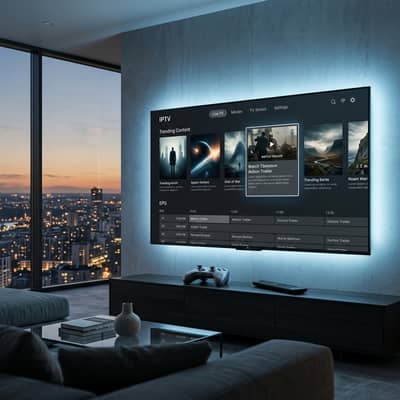
Best 4K IPTV Services in 2026: How to Find True Ultra HD Streams
Technical 2026 guide to finding true 4K IPTV streaming services with 60 FPS live sports, H.265 codecs, and zero upscaled fake feeds.
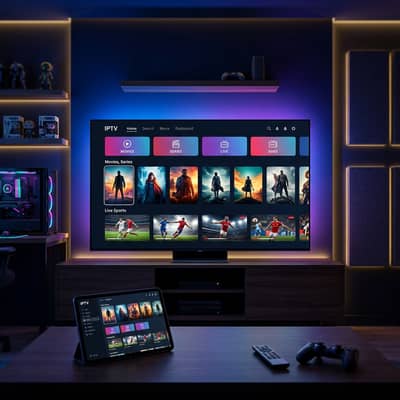
TiviMate Onn 4K Setup and How to Get the Best Performance in 2026
A complete walkthrough for installing, configuring, and optimizing the popular premium IPTV player on the budget-friendly onn. 4K streaming device. Covers sideloading procedures, performance tuning, thermal management, and settings calibration for maximum streaming quality.