
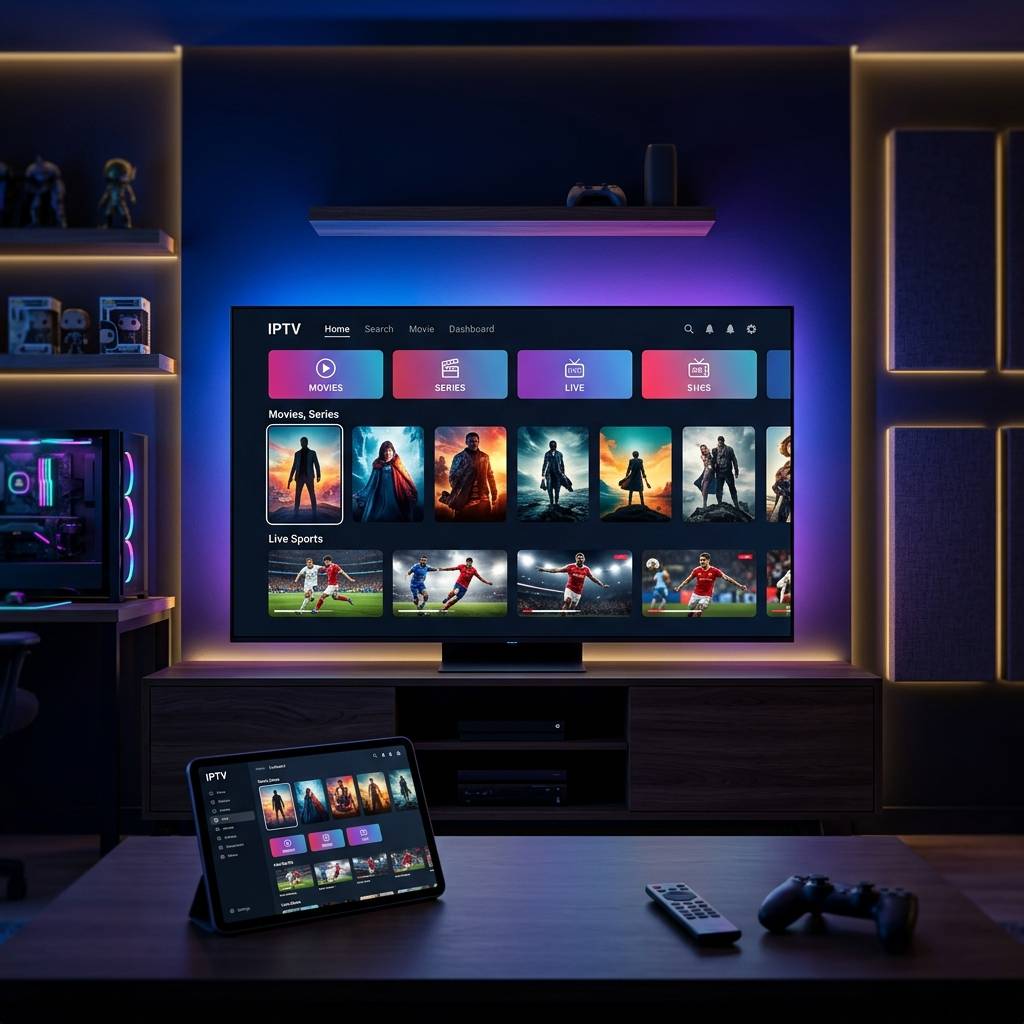
TiviMate Onn 4K Setup and How to Get the Best Performance in 2026

Why the Budget Streaming Stick Has Become the Secret Weapon for IPTV
In a marketplace filled with streaming devices ranging from thirty to two hundred dollars, a quiet revolution has occurred among budget-conscious IPTV subscribers who discovered that the most affordable hardware on the shelf delivers performance that dramatically exceeds its modest price tag. The onn. 4K streaming device sold exclusively through the major retail chain has earned a passionate following within the cord-cutting community, not because it offers the flashiest specifications or the most premium build quality, but because it delivers reliable everyday IPTV performance at a price point that makes the hardware investment virtually risk-free.
At under thirty dollars retail, this compact streaming stick includes a certified Android TV operating system, a quad-core processor, two gigabytes of system memory, native 4K HDR video output, dual-band WiFi, Bluetooth remote control with dedicated voice assistant button, and a physical form factor small enough to disappear completely behind any television. These specifications match or exceed the capabilities of name-brand streaming devices costing two to three times more.
The tivimate onn 4k plus pairing has emerged as one of the most recommended budget IPTV configurations across online cord-cutting communities. The combination delivers smooth channel switching, responsive guide navigation, and reliable high-definition playback that satisfies the daily viewing needs of the vast majority of households without the premium hardware investment that many newcomers assume IPTV requires.
Preparing Your Onn Device for Sideloaded Application Installation
Before installing the IPTV player onto your onn. streaming device, you must enable a system setting that permits application installation from sources outside the standard marketplace. This sideloading capability is a built-in feature of the Android TV operating system designed for legitimate software distribution scenarios where applications are not available through the standard marketplace catalog.
Navigate to Settings on your device home screen. Select Device Preferences, then Security and Restrictions, then Unknown Sources. The system displays a list of installed applications that can serve as installation sources. Enable the toggle for your preferred file management application. If no file manager is currently installed, you will return to enable this setting after installing one from the marketplace in the next step.
This security setting modification does not compromise your device security when used responsibly. The setting simply permits manual installation of application packages that you deliberately choose to transfer onto the device. The operating system continues protecting against unauthorized background installations and maintains all standard security protections for marketplace-sourced applications.
Step by Step Installation Process for the IPTV Player
With sideloading permissions configured, installing the premium IPTV player onto your onn. streaming device follows a structured process that takes approximately five minutes to complete.
- Step 1 Install a File Manager Application
- Open the standard marketplace on your device and search for a reputable file management utility. Several well-known options are available for free download. Install the file manager and return to the Unknown Sources settings to enable installation permissions for this newly installed application.
- Step 2 Install a Downloader Utility
- From the marketplace, install a downloader application that enables entering direct web URLs to download files onto the device. This utility serves as the bridge between the internet source of the installation package and your device's local storage.
- Step 3 Download the Official Installation Package
- Open the downloader utility and enter the official download URL for the player application. The download transfers the installation package file to your device internal storage. Verify the file size matches the expected package size to confirm a complete and uncorrupted download.
- Step 4 Install the Application
- After the download completes, the system prompts you to install the package. Confirm the installation and wait for the process to complete. The application appears in your device application list within seconds of successful installation.
- Step 5 Launch and Configure
- Open the newly installed player from your application list. The familiar interface loads immediately, ready for provider credential configuration and premium account activation using your existing subscription details.
Configuring Your Provider Credentials and Loading Channel Data
With the player installed and launched on your onn. device, the next critical step is connecting it to your IPTV provider to populate the channel database, electronic program guide, and video on demand library.
Navigate to the player settings and select the playlist or provider configuration section. Choose your preferred connection method. For providers supporting dynamic server authentication, enter the server URL, your assigned username, and your password. This method establishes a live connection that automatically refreshes channel lineups and guide data with every application launch. For providers distributing static playlist files, select the M3U URL option and enter the complete playlist web address from your subscription activation email.
After entering credentials, the player connects to your provider server and downloads the complete channel database. Initial loading times vary based on playlist size and your internet connection speed. A standard playlist containing five to ten thousand channels typically loads within thirty to sixty seconds on the onn. hardware. Larger databases containing twenty thousand or more entries may require ninety seconds to two minutes for complete parsing and category indexing.
Once the channel database finishes loading, your complete television interface appears with organized categories, channel listings, and electronic program guide schedules. Browse through your newly loaded channels to verify everything populated correctly. Add your most-watched stations to the favorites section for instant daily access without navigating through the full channel catalog.
Performance Optimization Settings for Maximum Speed
The onn. streaming device delivers impressive performance for its price tier, but targeted configuration adjustments within both the device system settings and the player application settings unlock noticeably smoother daily operation.
Within the device system settings, navigate to Developer Options. If this menu is not visible, go to Settings, then Device Preferences, then About, and tap the Build Number entry seven consecutive times to unlock developer access. Inside Developer Options, locate the animation scale settings: Window Animation Scale, Transition Animation Scale, and Animator Duration Scale. Set all three values to 0.5x or completely Off. This single adjustment eliminates the decorative animation delays between screen transitions, making every menu navigation, application launch, and settings change feel dramatically snappier.
Within the player application, reduce the electronic program guide data retention from the default multi-day setting to two or three days maximum. Storing seven or more days of guide data for thousands of channels consumes substantial system memory on a device with only two gigabytes available. Limiting guide data retention frees memory for active video decoding and interface rendering, reducing the likelihood of occasional stutters during channel switching on the memory-constrained budget hardware.
Set the player video decoder to Hardware mode rather than Software or Automatic. Hardware decoding offloads video processing to the dedicated media decoder chipset rather than running decode operations on the general-purpose processor. This configuration reduces CPU utilization during playback, leaving more processing headroom for responsive remote control input handling and background guide data updates.
Thermal Management and Preventing Performance Throttling
The compact physical design of the onn. streaming stick prioritizes portability and minimal visual footprint, but this miniaturization creates thermal challenges during extended viewing sessions that every user should understand and proactively manage.
During active video decoding, the processor generates continuous heat that must dissipate through the small plastic enclosure into surrounding ambient air. When the device is plugged directly into a television HDMI port tucked behind the display panel, the enclosed space behind the television traps heat and prevents efficient cooling. As internal temperatures rise toward thermal safety thresholds, the device firmware automatically reduces processor clock speeds to prevent hardware damage, manifesting as noticeable navigation sluggishness, delayed remote control responses, and occasional micro-stutter during video playback.
The simplest and most effective thermal management solution is using the included HDMI extender cable rather than plugging the stick directly into the television port. The six-inch extender positions the device in open air away from the heat-radiating television chassis, allowing natural convection to cool the enclosure continuously. This single change reduces sustained operating temperatures by ten to fifteen degrees and virtually eliminates thermal throttling during multi-hour viewing sessions.
For viewers who regularly watch for four or more consecutive hours, consider positioning a small USB-powered desk fan directing gentle airflow toward the device location behind the television. The modest additional cooling prevents the gradual temperature climb that triggers throttling during the third and fourth hours of continuous operation on warm summer evenings when ambient room temperatures are already elevated.
Expanding Storage and Connectivity on Budget Hardware
The onn. streaming device ships with limited internal storage that can fill quickly as applications, cached data, and guide databases accumulate over weeks of daily use. Proactive storage management and strategic expansion prevent the performance degradation that occurs when internal storage approaches capacity.
Monitor available storage periodically through Settings, then Device Preferences, then About, then Storage. If free space drops below three hundred megabytes, the operating system begins exhibiting sluggish behavior as it struggles to manage temporary files, application caches, and swap operations within the constrained space. Uninstall applications you no longer use and clear cache data from the heaviest installed applications to recover storage capacity.
For users who want to utilize the player recording functionality, connecting a USB OTG adapter with an external flash drive or portable hard drive provides the additional storage space necessary for recording live broadcasts. The device USB port supports external storage devices formatted in FAT32 or exFAT file systems. Configure the player recording destination to point to the external storage device rather than internal storage, preserving internal capacity for operating system operations while providing virtually unlimited recording archive space on the external drive.
For networking, if the device WiFi connection produces inconsistent stream quality during peak evening hours, a USB Ethernet adapter provides wired connectivity that eliminates wireless interference entirely. The adapter draws power through the USB port and accepts a standard Ethernet cable from your router, delivering stable sustained bandwidth for buffer-free live sports viewing on the budget hardware.
Why This Budget Setup Rivals Devices Costing Five Times More
The fundamental question every budget-conscious cord-cutter asks is whether a thirty-dollar streaming device can genuinely deliver a viewing experience comparable to premium hardware costing one hundred to two hundred dollars. After extensive daily use, the honest answer is yes for the vast majority of household viewing scenarios.
The core video decoding pipeline on the onn. hardware handles standard HD and 4K streams with identical output quality to any premium device. A 1080p sports broadcast decoded on a thirty-dollar stick produces exactly the same picture on your television as the same broadcast decoded on a two-hundred-dollar premium box. The video data is identical. The decoder output is identical. The visual result on your screen is identical.
Where premium hardware provides measurable advantages is in navigation speed with extremely large channel databases exceeding twenty thousand entries, multi-view grid rendering with four or more simultaneous streams, and sustained thermal performance during all-day marathon sessions without any throttling management. For the estimated eighty percent of IPTV subscribers whose daily usage involves standard single-channel viewing with occasional guide browsing and channel switching across playlists under fifteen thousand entries, the budget hardware performs indistinguishably from premium alternatives.
The tivimate onn 4k plus configuration represents the most accessible entry point into high-quality IPTV viewing available anywhere in 2026. For less than fifty dollars total including the hardware and the annual premium player subscription, a household gains access to the most capable IPTV player running on certified streaming hardware with native 4K output. No other combination in the consumer marketplace delivers this level of daily entertainment value at this price point.
Frequently Asked Questions
Ready to get started?
Try our service risk-free with a 24-hour free trial.
Related Articles
Understanding EPG: The Essential Guide for IPTV Users
Explore the concept of EPG and its benefits for IPTV users.
Download Speed vs Upload Speed Explained and How Much You Actually Need
A technical guide explaining the difference between download and upload internet speeds covering what each measures and how much bandwidth different activities require and how to test and optimize both for your household.

Discover How to Access Canadian TV Shows with IPTV: Your 2026 Guide
Unlock your favorite Canadian TV shows with IPTV solutions.