Discover the Best IPTV Subscriptions for Your Streaming Needs

Your Smart TV is already sitting there, connected to the internet, capable of streaming thousands of live channels and on-demand content — and yet you're still paying a bloated cable bill or fighting through a buggy streaming app that barely works. That frustration is exactly why so many people are switching to IPTV on Smart TV setups, and once you nail the configuration, you'll wonder how you ever tolerated anything else. Whether you're dealing with constant buffering, can't figure out how to load your M3U playlist, or just got your first IPTV subscription and have no idea where to start, this guide walks you through every single step with zero guesswork.
Solving your IPTV setup correctly the first time matters because a misconfigured app or wrong network setting will cause freezing, pixelation, and dropped streams that make your subscription feel broken — even when the service itself is perfectly fine. Getting this right upfront saves you hours of troubleshooting down the road.
Core Concepts & Need-To-Know Info
- M3U Playlist URL: This is a link your IPTV provider gives you that contains all your channel data. It ends in .m3u or .m3u8 and is pasted directly into your player app
- Xtream Codes API: An alternative login method using a server URL, username, and password — more stable than M3U for large channel lists
- IPTV Player App: Your Smart TV needs a compatible app like Smart IPTV, IPTV Smarters Pro, or TiviMate (via Android TV) to read and play your playlist
- Internet Speed: You need a minimum of 25 Mbps for HD streaming and 50+ Mbps for stable 4K IPTV — wired ethernet is always preferred over Wi-Fi
- ISP Throttling: Many internet providers intentionally slow down streaming traffic, which causes buffering even on fast connections — a VPN fixes this
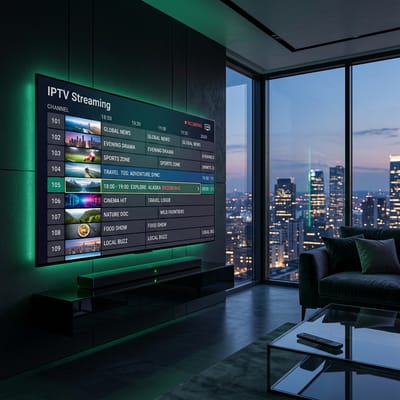
- EPG (Electronic Program Guide): This is the TV guide data that shows what's currently playing and what's coming up — your provider usually gives you an EPG URL alongside your playlist
- VOD (Video on Demand): Most IPTV subscriptions include a VOD library separate from live channels — you access this through the same app using the same login
Step-by-Step Guide
- Step 1: Check Your Smart TV's Operating System:
- Navigate to your TV's Settings menu and look for About or System Information. Identify whether your TV runs Samsung Tizen, LG webOS, Android TV, or Google TV. This matters because each OS has different apps available. Android TV and Google TV users have the most flexibility — you can install TiviMate or IPTV Smarters directly from the Google Play Store. Samsung and LG users will work with Smart IPTV or SS IPTV.
- Step 2: Install Your IPTV Player App:
- On Android TV or Google TV, open the Google Play Store, search for IPTV Smarters Pro or Smart IPTV, and click Install. On Samsung Tizen TVs, go to the Smart Hub, open the app store, and search for Smart IPTV — note it requires a one-time activation fee of around $5.99. On LG webOS, open the LG Content Store and search for SS IPTV which is free. Do not download IPTV apps from unknown third-party websites — only use official app stores when possible.
- Step 3: Gather Your IPTV Credentials:
- Open the welcome email from your IPTV provider. You'll need one of two things: either your M3U playlist URL (a long web address) or your Xtream Codes login details (server URL, username, and password). Copy these carefully — a single wrong character will prevent your channels from loading. If your provider gave you both options, Xtream Codes is generally more reliable for Smart TV setups.
- Step 4: Add Your Playlist to the App:
- Open your installed IPTV app. In IPTV Smarters Pro, tap Add User then select either Load Your Playlist or File/URL for M3U or Xtream Codes API for credential-based login. Enter your details exactly as provided. In Smart IPTV on Samsung, go to siptv.eu on a browser, enter your TV's MAC address (found in the app), and upload or paste your M3U URL. Click Save and restart the app on your TV.
- Step 5: Configure Your EPG Source:
- Inside the app settings, look for EPG or Electronic Program Guide. Paste the EPG URL your provider gave you (it usually ends in .xml or .xml.gz). Set the EPG refresh interval to every 24 hours. This populates your channel guide with show names and schedules — without it, every channel just shows No Information, which makes navigating live TV frustrating.
- Step 6: Test Channels and Check Stream Quality:
- Browse to your channel list and open a live channel. Watch it for 60 seconds and check for buffering or pixelation. Then test a 4K VOD title if your subscription includes one. If streams load instantly and play smoothly, your setup is complete. If you see buffering within the first 30 seconds, the issue is almost always your network connection or ISP throttling — see the troubleshooting section below.
- Step 7: Connect via Ethernet for Best Performance:
- Go to your Smart TV's Network Settings and switch from Wi-Fi to Wired or Ethernet. Plug a Cat6 ethernet cable from your router directly into the TV's LAN port. Run a speed test from the TV's built-in browser — you want to see at least 50 Mbps down for reliable HD and 4K IPTV streaming. Wired connections eliminate the interference and speed drops that Wi-Fi causes, especially during peak evening hours.
A real-world scenario: you set everything up perfectly, streams work great for the first week, then every evening around 8 PM your football match starts buffering like crazy. That's not your IPTV provider — that's your ISP detecting heavy video traffic and deliberately slowing your connection during peak hours. A quality VPN encrypts your traffic so your ISP can't identify it as streaming data, and the throttling stops immediately. Another common disaster: someone pastes their M3U URL with an accidental space at the beginning — the app accepts it but returns zero channels, leaving the user thinking their subscription was cancelled.
Best VPNs to Stop ISP Throttling on Smart TV
ExpressVPN is the top choice for Smart TV IPTV — it has a native Android TV app, consistent speeds above 300 Mbps, and servers optimized for streaming in Canada, the US, and the UK. NordVPN offers a Smart TV-compatible app with its NordLynx protocol delivering extremely low latency, which is critical for live sports and news streams. Surfshark is the best budget option — unlimited simultaneous connections means you can protect your Smart TV, Firestick, and phone all on one subscription. Connect your VPN to a server in the same country as your IPTV server for the lowest ping and fastest stream startup times. If your Smart TV doesn't support VPN apps natively (Samsung Tizen), install the VPN directly on your router — this protects all devices on your network including your TV without needing an app.
Recommended Apps: TiviMate vs IPTV Smarters Pro
TiviMate is widely considered the gold standard for Android TV and Google TV users — its interface looks like a real cable TV guide, EPG integration is flawless, and it handles large M3U playlists with thousands of channels without slowing down. IPTV Smarters Pro is more universally compatible and works on a wider range of devices including older Android TVs and some Samsung TVs — it supports both M3U and Xtream Codes login and includes a built-in VOD browser. TiviMate's Premium version ($4.99/year) unlocks multiple playlists, recordings, and catchup features — it's an absolute bargain for serious IPTV users. Smart IPTV is the go-to for Samsung Tizen TVs since TiviMate isn't available on Tizen — it's clean, reliable, and simple to configure with an M3U URL. For absolute beginners, IPTV Smarters Pro is the easier starting point — its setup wizard walks you through adding your playlist step by step with no technical knowledge required.
Common Setup Mistakes & How to Fix Them
- Wrong app for your TV OS: TiviMate only works on Android TV and Google TV — trying to install it on a Samsung or LG TV will fail. Always match the app to your TV's operating system
- Forgetting to refresh the EPG: If your program guide shows blank or outdated information, go into app settings and manually trigger an EPG refresh — set it to auto-update every 24 hours going forward
- App buffering but YouTube works fine: This almost always means ISP throttling is active on your connection. Test by connecting a VPN — if buffering stops immediately, throttling is confirmed
- Channels load but have no audio: Go into the app's player settings and switch the audio decoder from Hardware to Software (or vice versa) — Smart TV hardware decoders sometimes conflict with certain IPTV stream codecs
- M3U playlist shows 0 channels after loading: Double-check the URL for extra spaces, verify it hasn't expired by opening it in a browser, and confirm your IPTV subscription is active — then re-add the playlist from scratch
Network Requirements for Smooth IPTV Streaming
- Standard HD channels: Minimum 10 Mbps per stream, but 25 Mbps recommended for stable playback without micro-buffering
- Full HD (1080p) streams: 25–40 Mbps for a single stream — this covers most sports, news, and premium channels
- 4K IPTV streams: 50 Mbps minimum per stream — if you're running other devices simultaneously, you need 100+ Mbps total household speed
- Ethernet over Wi-Fi: A wired Cat6 connection consistently outperforms Wi-Fi for IPTV — Wi-Fi 5 GHz is acceptable but 2.4 GHz is too slow and congested for reliable streaming
- Router placement: If you must use Wi-Fi, position your router within 15 feet of your Smart TV with no concrete walls between them — distance and obstructions are the enemy of stable IPTV streams
- Run a speed test directly on your Smart TV (not your phone) using your TV's browser — phone results don't reflect what your TV is actually receiving
Troubleshooting: Fixing Playlist Errors and Buffering
- Unable to load playlist error: The M3U URL has likely expired or contains a typo — contact your provider for a fresh URL and re-enter it by copy-paste only
- Channels freeze exactly 30–60 seconds in: This is a buffer size issue — in your app's player settings, increase the buffer size from the default to Auto or the highest available option
- App crashes when loading large playlists: Your TV doesn't have enough RAM to handle 20,000+ channels — ask your provider for a filtered playlist with only the regions and genres you actually watch
- Specific channels buffer but others don't: The issue is with that particular stream's server, not your setup — check if your provider offers a backup stream URL for that channel
- Everything worked yesterday, nothing works today: Your IPTV provider may be doing server maintenance — wait 30 minutes and retry; if it persists for more than 2 hours, contact support
Setting up IPTV on Smart TV the right way takes about 20 minutes — but doing it right means years of smooth, uninterrupted streaming without the cable bill. Every step in this guide is designed to get you to a working, buffer-free setup as fast as possible, so take the warnings seriously, apply those pro tips, and check out our channel list and pricing plans to find the subscription that fits your needs perfectly.
Frequently Asked Questions
Ready to get started?
Try our service risk-free with a 24-hour free trial.
Related Articles

Discover the Best IPTV Subscription for Your Firestick in 2026
Explore top IPTV subscriptions and apps for Firestick.
IPTV 4K Streaming Quality and How to Achieve True Ultra High Definition Playback in 2026
A technical deep dive into achieving uncompressed 4K ultra-high-definition IPTV streaming. Covers video encoding standards, hardware decoders, display calibration, network optimization, and buffer management for flawless high-bitrate live television.
How to Set Up Firestick on TV Step by Step Guide for 2026
Setting up a new Amazon Fire TV Stick does not have to be frustrating. This complete 2026 walkthrough covers everything from physical HDMI connection and remote pairing to unlocking developer options, configuring optimal display settings, and installing the best streaming apps for buffer-free entertainment.