
Understanding EPG: The Essential Guide for IPTV Users

You fire up your IPTV app, scroll through hundreds of channels, and have absolutely no idea what's playing on any of them. No show titles, no schedules, no way to know if the game already started or if you're 20 minutes into a movie. That blank, lifeless channel list is what life looks like without an EPG, and once you understand what an EPG is and how to set one up properly, you'll wonder how you ever streamed without it.
Without a working EPG, you're essentially flying blind through hundreds of channels. More importantly, a missing or broken guide breaks core features like recording, time-shifting, and catch-up TV, features you're likely already paying for in your IPTV subscription.
Core Concepts & Need-To-Know Info
- EPG stands for Electronic Program Guide: it's the scheduling backbone of any serious IPTV setup, delivering metadata like show names, descriptions, and air times.
- EPG data is delivered via a URL: your IPTV provider will give you a dedicated EPG URL (sometimes called an XMLTV URL) separate from your M3U playlist link.
- XMLTV is the standard format: EPG data is packaged in XML files following the XMLTV standard, which apps like TiviMate, IPTV Smarters, and GSE Smart IPTV all support natively.
- EPG refresh intervals matter: most providers update their EPG data every 12 to 24 hours; your app needs to be set to refresh automatically to stay current.
- Channel mapping can fail: if your EPG loads but certain channels show no guide data, it means the channel ID in the M3U file doesn't match the ID in the EPG source (this is fixable).
- Xtream Codes users get EPG automatically: if your provider uses Xtream Codes API login instead of an M3U URL, the EPG is often bundled in and loads without a separate URL.
- Internet speed affects EPG loading: EPG files can be large (sometimes several megabytes); a slow or throttled connection from your ISP can cause the guide to load slowly or fail entirely.
Step-by-Step Guide: How to Set Up Your EPG in TiviMate on Firestick
- Step 1: Get Your EPG URL From Your Provider:
- Log into your IPTV provider's customer panel or check your welcome email. Look for a link labeled EPG URL, XMLTV URL, or Guide URL. Copy this link exactly, even a single missing character will break the feed. If you use Xtream Codes login, your EPG may already be embedded; test the guide first before adding a separate URL.
- Step 2: Open TiviMate and Go to Settings:
- Launch TiviMate on your Firestick or Android TV device. From the main screen, press the hamburger menu icon (three horizontal lines) on the left side, then scroll down and tap Settings. This is your central control panel for all EPG and playlist configurations.
- Step 3: Navigate to Playlists:
- Inside Settings, tap Playlists. You'll see your existing M3U playlist listed here. Tap on your active playlist to open its individual settings. This is where TiviMate links your channel list to its corresponding EPG source, they must be connected at the playlist level, not globally.
- Step 4: Find the EPG Field and Enter Your URL:
- Inside your playlist settings, scroll down until you see the EPG section. Tap EPG URL and carefully paste or type your XMLTV URL into the field. Use the Firestick's voice input button to reduce typing errors if you're entering it manually. Once entered, tap OK to confirm.
- Step 5: Set the EPG Refresh Schedule:
- Still inside the playlist/EPG settings, find the Update or Auto-update option for EPG. Set it to refresh every 12 to 24 hours. This ensures your guide data stays current without you manually triggering updates. Tap the back button to save all changes.
- Step 6: Force an Immediate EPG Update:
- Go back to the main Settings page and tap EPG from the top-level menu. Tap Update EPG Now or Refresh to force TiviMate to immediately download the guide data from your URL. Watch the progress bar, a successful load will show the number of programs imported (often tens of thousands of entries).
- Step 7: Verify the Guide Is Working:
- Return to your channel list and switch to the Guide view (press the menu button and select Guide or press the dedicated guide button on your remote). You should now see a full TV grid with channel names on the left and time-slot programming filling the rows. If some channels are blank, proceed to the troubleshooting section below.
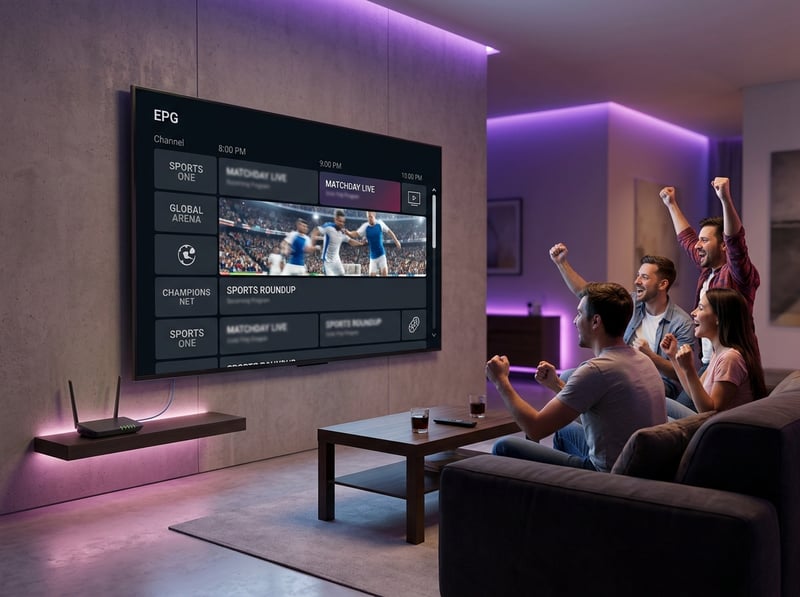
Picture this: it's Sunday afternoon, you're ready for the game, and your EPG shows nothing but blank rows. You start flipping channels manually, miss the first quarter, and realize your EPG URL expired because your provider updated their system and never notified you. This happens constantly to people who set up their EPG once and never revisit it. The second scenario is even more frustrating: ISP throttling silently fails your EPG download mid-file, so the guide loads for 200 channels and goes dark for the remaining 400, and you have no idea why.
Common Setup Mistakes and How to Fix Them
Mistake: EPG URL entered but guide shows blank for all channels. This almost always means the EPG URL is wrong or the file isn't loading. Go back into TiviMate's playlist settings, delete the EPG URL, and re-paste it. Then force a manual update and watch whether the program count increases from zero. Mistake: Some channels have guide data, others don't. This is a channel mapping issue. The channel ID in your M3U file doesn't match the corresponding ID in the XMLTV data. In TiviMate Premium, you can manually remap channels by navigating to the channel settings, tapping EPG Channel, and searching for the correct matching entry from your loaded guide data. Mistake: Guide data is always 24 hours behind. Your EPG auto-refresh isn't working. Check that TiviMate has permission to run in the background on your Firestick and confirm the refresh interval is set to 12 hours or less inside the playlist EPG settings.
Best VPNs to Stop ISP Throttling From Breaking Your EPG
If your EPG consistently fails to load or your IPTV stream buffers despite a fast internet plan, your ISP is almost certainly throttling IPTV-related traffic. A quality VPN masks your streaming activity from your ISP so it can't selectively slow down your connection.
- ExpressVPN: consistently the fastest VPN for IPTV, with servers optimized for streaming and minimal impact on EPG download speeds. Works natively on Firestick via its own app.
- NordVPN: excellent for IPTV users who want a balance of speed and price; its NordLynx protocol keeps latency low enough that even large EPG files download in seconds.
- Surfshark: the best budget-friendly option, and uniquely allows unlimited simultaneous connections so your whole household's IPTV devices are covered under one subscription.
Install your VPN before launching TiviMate, connect to a server close to your physical location, then force an EPG refresh. Most users see their guide data populate fully within the first attempt.
TiviMate vs IPTV Smarters: Which App Handles EPG Better
Both apps support XMLTV-based EPG, but they handle it very differently under the hood.
- TiviMate: stores EPG data locally after downloading it, meaning once the guide loads, it stays available even if your internet drops temporarily. Its Premium tier adds channel-level EPG remapping, which is invaluable when your provider's channel IDs are messy.
- IPTV Smarters Pro: fetches EPG data more frequently but doesn't cache it as aggressively, which means it's more prone to showing blank guide rows during connectivity hiccups.
- For Firestick users specifically: TiviMate is the clear winner, its interface is more remote-friendly, the guide grid is faster to navigate, and the background EPG refresh is more reliable on Fire OS.
If you're an Xtream Codes subscriber, Smarters can be a solid starting point because EPG is auto-populated from the server. But for long-term, full-featured use, TiviMate Premium is worth every penny.
Network Requirements for Smooth EPG and Live Streaming
- Minimum 25 Mbps download speed for HD IPTV streaming: EPG loading is additional overhead on top of your live stream bandwidth.
- Wired Ethernet connection is always preferable over Wi-Fi for IPTV; it eliminates packet loss that causes both stream buffering and EPG timeout errors.
- Use a 5GHz Wi-Fi band if you can't run Ethernet: 2.4GHz is too congested in most homes and causes inconsistent performance when downloading large EPG XML files.
- Router placement matters: keep your Firestick or Android TV box within clear line-of-sight of your router; walls and appliances significantly degrade 5GHz signal strength.
Troubleshooting: Fixing Playlist and EPG Errors
EPG URL returns a 403 or 404 error: Your provider has updated or rotated the EPG URL. Log back into your customer panel and grab the new link, providers refresh these periodically for security reasons. EPG loads but shows wrong language or region: You may be pointed at a generic international XMLTV source. Ask your provider for a region-specific EPG URL, or check if they offer separate URLs for US, UK, or other regional channel lineups. TiviMate crashes during EPG update: The EPG file may be too large for your device's available RAM. Go to Settings > EPG and enable Use Compact EPG if available, or reduce the EPG fetch window from 7 days to 3 days to cut the file size significantly.

Understanding what an EPG is and getting it configured correctly is the single most impactful upgrade you can make to your IPTV setup after choosing a reliable provider. It transforms a confusing wall of channel numbers into a genuine cable-TV-quality experience, unlocks recording and catch-up features, and removes the guesswork from your daily streaming routine. Get your EPG URL from your provider, plug it into TiviMate, and check out our full channel list and pricing plans to make sure you're getting the most out of every feature your subscription offers.
Frequently Asked Questions
Ready to get started?
Try our service risk-free with a 24-hour free trial.
Related Articles

Firestick VPN Setup Guide and How to Stop ISP Throttling in 2026
A complete walk-through for installing and configuring a VPN on Amazon Fire TV Stick. Explains how ISP throttling causes evening buffering, how encryption bypasses bandwidth caps, and protocol selection for 4K video.

TiviMate Companion Account Setup and Premium Subscription Guide 2026
A comprehensive walkthrough for creating a TiviMate Companion account, purchasing a premium subscription, activating devices, and managing playlists through the mobile companion application. Covers free versus premium feature differences and troubleshooting common login issues.

Best Firestick Downloader Codes and How to Sideload Any App in 2026
A complete guide to using Downloader codes on Amazon streaming sticks. Covers how to unlock developer options, input short numeric codes, install essential media players, and verify file integrity.