

Unlocking the Power of Roku IPTV: Your Complete Setup Guide

Roku is one of the most popular streaming devices on the planet, but most users have no idea they're sitting on a goldmine of live TV potential. If you've been paying a bloated cable bill while your Roku collects dust between Netflix sessions, or you've tried to get IPTV working on your Roku and hit a wall of confusing menus and broken streams, this guide is exactly what you need. You'll get a clear, working method to set up Roku IPTV the right way, avoid the mistakes that cause buffering and crashes, and finally watch live sports, international channels, and on-demand movies without spending a fortune.
Getting this right matters because a poorly configured IPTV setup on Roku doesn't just give you bad quality, it gives you a genuinely miserable experience full of buffering, authentication errors, and frozen screens. A properly configured Roku IPTV setup, on the other hand, feels better than cable.
Core Concepts & Need-To-Know Info
- IPTV (Internet Protocol Television): Live TV and on-demand content delivered over your internet connection instead of a cable or satellite signal
- M3U Playlist / M3U URL: A file or web link that contains all your channel data. Your IPTV provider gives you this link after you subscribe
- Xtream Codes: An alternative login method (server URL + username + password) that some IPTV apps use instead of an M3U URL
- VOD (Video On Demand): The on-demand movie and TV series library included with most IPTV subscriptions
- EPG (Electronic Program Guide): The on-screen TV guide showing what's playing now and what's coming up next
- ISP Throttling: Your internet provider intentionally slowing down streaming traffic, a major cause of IPTV buffering
- VPN: A Virtual Private Network that encrypts your traffic and prevents ISP throttling
- Sideloading: Installing apps that aren't in the official Roku Channel Store, this is the key challenge with Roku IPTV
Step-by-Step Guide to Setting Up Roku IPTV
- Step 1: Choose Your IPTV App
- Not every IPTV app works on Roku. Your best options are the Smarters IPTV private channel, Channels DVR, or the OTT Navigator if available in your region. For this guide, we'll use Smarters IPTV as it supports both M3U playlist links and Xtream Codes login. Search the Roku Channel Store for Smarters or ask your IPTV provider for their private channel code.
- Step 2: Add the Private Channel
- Go to my.roku.com on your computer or phone, sign into your Roku account, click Add Channel, and enter the private channel code your IPTV provider or app developer supplied. This adds the app to your Roku device within a few minutes.
- Step 3: Launch the App on Your Roku
- Press the Home button on your Roku remote, scroll through your channels, and find the newly installed IPTV app. Open it and wait for it to load fully before doing anything else.
- Step 4: Enter Your IPTV Login Credentials
- You'll see an option to add a playlist. Choose either M3U URL or Xtream Codes depending on what your IPTV provider gave you. If you have a link ending in .m3u or .m3u8, paste it into the M3U field. If your provider gave you a server address, username, and password, select Xtream Codes and enter those three pieces of information exactly as provided, one wrong character breaks the entire connection.
- Step 5: Wait for the Playlist to Load
- Depending on how many channels your subscription includes (some have 10,000+), this loading process can take anywhere from 30 seconds to a few minutes. Do not close the app or press back during this step. A large M3U playlist with EPG data attached will always take longer on the first load.
- Step 6: Configure Your EPG (Program Guide)
- Once your channels load, go into the app's settings and locate the EPG or TV Guide section. Enter the EPG URL your IPTV provider gave you (it usually looks like an XMLTV link). This populates your on-screen guide so you can see what's playing and what's coming up on every channel.
- Step 7: Test Your Streams
- Open a few live channels across different categories, a sports channel, a news channel, and one international channel. Check for smooth playback, correct audio sync, and proper image quality. If everything plays without buffering, your Roku IPTV setup is complete.
- Step 8: Enable a VPN (Highly Recommended)
- If you want to prevent ISP throttling, install a VPN-enabled router or use a router-level VPN before your Roku connects to the internet. Since Roku doesn't support native VPN apps, the router is your best option for protecting your IPTV traffic.
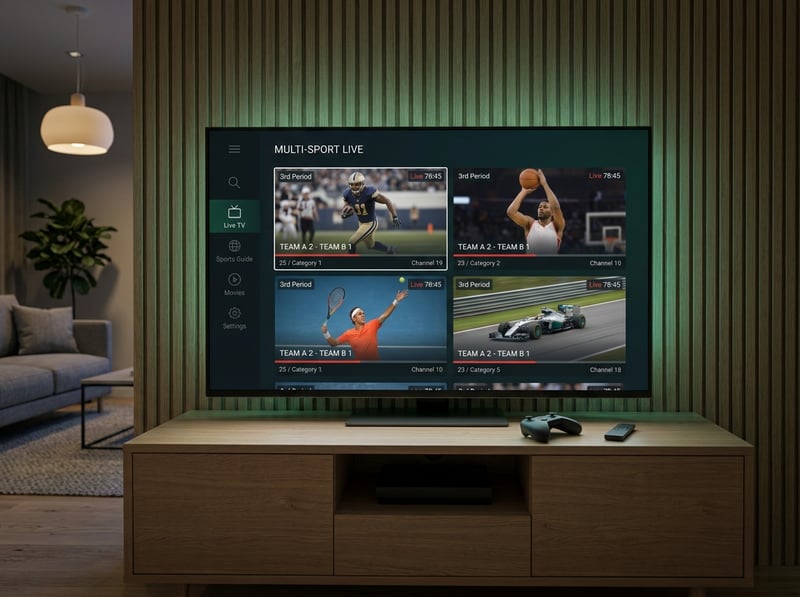
Imagine this scenario: you've just subscribed to a premium IPTV service to watch a big match, your team is about to score, and your stream freezes because your ISP detected streaming traffic and throttled your bandwidth down to 3 Mbps. That's not an IPTV problem, it's an ISP problem, and a VPN on your router would have prevented it entirely. Similarly, users who copy-paste their M3U URL from a provider email sometimes pick up invisible formatting characters that cause authentication failures, leaving them convinced their subscription isn't working when the fix is just retyping the URL from scratch.
Best VPNs to Stop ISP Throttling on Roku IPTV
Since Roku doesn't support VPN apps directly, you need to configure your VPN at the router level. ExpressVPN offers industry-leading speeds regularly above 300 Mbps, has a dedicated router app, and is consistently the top pick for IPTV users dealing with throttling, with their Lightway protocol keeping latency low even on 4K streams. NordVPN provides excellent value, supports router-level setup, and includes obfuscated servers that make your IPTV traffic look like regular HTTPS traffic to your ISP, making it great for users in regions with aggressive ISP monitoring. Surfshark is the budget-friendly choice that doesn't sacrifice speed, with unlimited device connections covering your entire household under one subscription. To set up any of these on your router, log into your router's admin panel (usually 192.168.1.1), navigate to the VPN or WAN settings, and enter the VPN configuration details provided by your chosen service.
Common Setup Mistakes & How to Fix Them
Even technically confident users trip over the same Roku IPTV setup mistakes repeatedly. Using a generic media player instead of a dedicated IPTV app like Smarters means no EPG, no VOD organization, and a terrible UI, so always use an IPTV-specific application. Your IPTV provider updates their channel list periodically, so if channels stop working open your app settings and manually refresh or re-import the M3U URL. Most IPTV apps let you adjust the playback buffer, and increasing it to 5,000-10,000ms significantly reduces mid-stream freezing on slower connections. The 2.4 GHz Wi-Fi band is congested in most homes, so switch your Roku to your 5 GHz network or use an ethernet adapter for rock-solid connectivity. Many users skip the EPG setup step and then complain the app feels barebones, but adding your EPG URL transforms the experience into something that feels like a real cable TV interface.
Recommended Apps: What Works Best for Roku IPTV
Not all IPTV apps are created equal on the Roku platform. IPTV Smarters Pro is the gold standard for Roku IPTV, supporting M3U and Xtream Codes with a clean EPG interface, VOD browsing, and series categorization, making it the best choice for users with full IPTV subscriptions. Channels DVR is a powerful option for users who want DVR functionality alongside their IPTV, more complex to set up but incredibly feature-rich for power users who want to record live TV. OTT Navigator is available in select regions and has one of the best UI designs for navigating large channel lists and VOD libraries. Note that TiviMate is an Android and Firestick app and does NOT work on Roku, so if you love TiviMate you would need to switch to a Firestick for that experience.
Network Requirements for 4K IPTV Streaming on Roku
Your internet connection is the foundation everything else is built on. SD channels at 480p require a minimum of 5 Mbps but realistically you want at least 10 Mbps to handle network fluctuations without buffering. HD channels at 720p and 1080p need 15-25 Mbps, which is where most IPTV subscriptions operate. 4K and UHD channels require a minimum of 50 Mbps with 75-100 Mbps recommended when streaming on multiple devices simultaneously. High ping above 80ms can cause live sports streams to stutter even when your overall speed is sufficient, so use a wired connection to minimize latency. If your Roku is more than two rooms away from your router, a Wi-Fi signal extender or mesh network node positioned nearby will make a noticeable difference in stream stability. Run a speed test at speedtest.net directly on your Roku before blaming your IPTV provider for buffering.
Troubleshooting Roku IPTV Playlist Errors
When your playlist fails to load or channels show errors, work through these fixes systematically. First, delete the existing playlist from your app and add it fresh by copying the URL directly from your provider's welcome email rather than typing it manually. Log into your provider's panel or contact support to confirm your account is active and your connection limit hasn't been exceeded. Paste your M3U URL into a web browser: if it downloads a file the URL is working, but if you get a 403 or 404 error the issue is server-side and requires contacting your provider. On Roku, go to Settings > System > Advanced System Settings to manage app data, or simply uninstall and reinstall the IPTV app to clear any corrupted cache. Finally, change your Roku's DNS to 8.8.8.8 (Google) or 1.1.1.1 (Cloudflare) via your router settings, since some ISP-assigned DNS servers block IPTV traffic at the domain level and show up as playlist loading failures.

Getting Roku IPTV working properly isn't complicated once you understand the platform's limitations and work with them instead of against them, and the end result of thousands of live channels, sports, international content, and on-demand movies on one of the most reliable streaming platforms available is absolutely worth the setup effort. Start with a reputable IPTV provider, use a dedicated IPTV app, protect your traffic with a router-level VPN, and connect via ethernet wherever possible, then check out our full channel list and pricing plans to find the subscription that fits your needs perfectly.
Frequently Asked Questions
Ready to get started?
Try our service risk-free with a 24-hour free trial.
Related Articles

Discover How to Access Canadian TV Shows with IPTV: Your 2026 Guide
Unlock your favorite Canadian TV shows with IPTV solutions.
Discover the Best IPTV Apps for Firestick: Boost Your Streaming Experience
Uncover the top IPTV apps for Firestick to elevate your streaming.
Exploring IPTV Subscriptions: Your Complete 2026 Guide
Learn all about IPTV subscriptions and how to optimize your streaming experience.