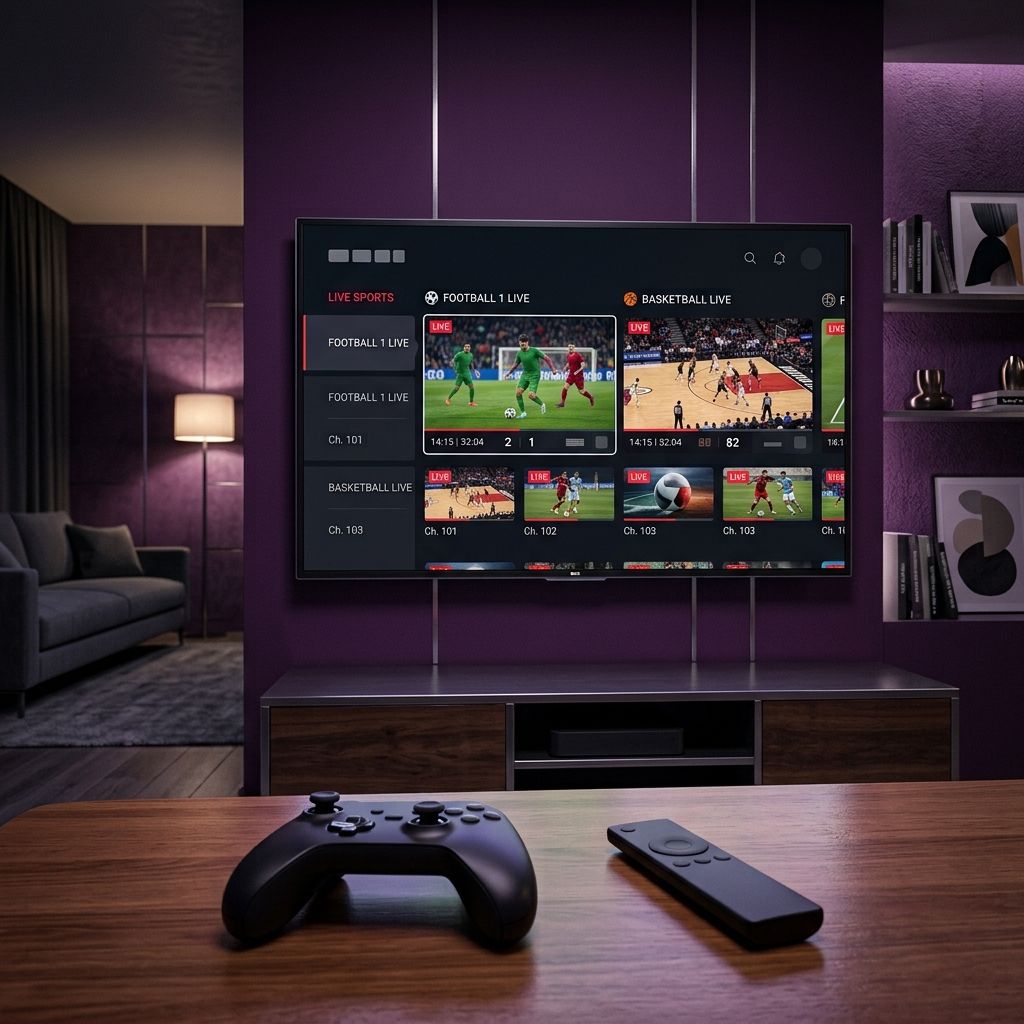
Discover the Best IPTV Apps for Firestick: Boost Your Streaming Experience

Staring at a blank program guide — or worse, no guide at all — is one of the most frustrating parts of switching to IPTV. You've got hundreds of live channels at your fingertips, but without an EPG (Electronic Program Guide), you're basically flying blind, scrolling through channel numbers with zero idea what's actually playing. The good news? Setting up EPG on IPTV is simpler than most people think, and once it's configured correctly, your streaming setup will feel every bit as polished as a traditional cable subscription — minus the monthly highway robbery.
Without a properly configured EPG, you're leaving the best features of your IPTV subscription completely unused. Apps like TiviMate, IPTV Smarters Pro, and GSE Smart IPTV are built around the guide experience — fix the EPG, and you unlock the full potential of every one of them.
Core Concepts & Need-To-Know Info
- EPG stands for Electronic Program Guide: It's a timed schedule of TV programming, delivered as an XML file (usually in XMLTV format), that your IPTV app reads and maps to your channel list.
- Your IPTV provider usually supplies an EPG URL: This is a direct link (ending in .xml, .xml.gz, or similar) that your app pings to download schedule data. Check your welcome email or provider portal for it.
- Xtream Codes API often includes EPG automatically: If your subscription uses an Xtream Codes login (username, password, server URL), the EPG may load without a separate URL — but it still needs to be enabled in your app.
- M3U playlist and EPG are separate things: Your M3U URL delivers the channel streams; the EPG URL delivers the schedule. Both are needed for a complete experience.
- Channel matching is the trickiest part: Your app has to match channel names in the M3U playlist to channel IDs in the EPG XML file. Mismatches are the number-one reason guides show blank or incorrect info.
- EPG data is time-sensitive: Most providers update their XML files every 24 hours. If your app isn't refreshing regularly, your guide will fall out of sync.
- Internet speed matters for initial EPG loading: Large XMLTV files can be several megabytes. A slow connection or ISP throttling can cause the guide to time out before it fully loads.
Step-by-Step Guide
- Step 1: Locate Your EPG URL From Your Provider:
- Log into your IPTV provider's customer portal or check your registration email. Look for a link labeled EPG URL, XML Guide, or XMLTV Link. Copy this URL exactly — even one wrong character will break it. If your provider uses Xtream Codes, the EPG is typically built into the server and you may skip to Step 3.
- Step 2: Open Your IPTV App and Navigate to Playlist Settings:
- Launch TiviMate (or your chosen app) on your Firestick or Android TV device. From the main screen, tap the hamburger menu (three horizontal lines), then go to Settings, Playlists. Select your active playlist to edit it.
- Step 3: Locate the EPG Source Field:
- Inside your playlist settings, scroll down until you find a field labeled EPG Source, EPG URL, or Guide URL. This is where you'll paste the link from Step 1. In TiviMate, this field is directly below the M3U URL field. In IPTV Smarters Pro, it appears during the initial playlist setup wizard.
- Step 4: Paste Your EPG URL and Save:
- Tap the EPG Source field, paste your URL using your device's clipboard or virtual keyboard, then confirm and save the settings. Double-check for any extra spaces at the beginning or end of the URL — these are invisible but will cause a failed connection.
- Step 5: Trigger an EPG Refresh:
- Don't wait for the automatic update. In TiviMate, go to Settings, EPG, Update EPG Now. In IPTV Smarters, pull down to refresh from the channel list screen. The app will download the XML data — this can take 30 seconds to several minutes depending on file size and your connection speed.
- Step 6: Check Your Guide for Populated Data:
- Navigate back to your live TV channel list and switch to the EPG/Guide view. You should now see show titles, times, and descriptions populating alongside your channels. If some channels show data and others don't, that's a channel-matching issue covered in the troubleshooting section below.
- Step 7: Set Your EPG Auto-Refresh Interval:
- In TiviMate, go to Settings, EPG and set the auto-update interval to every 24 hours. This ensures your guide stays current without manual intervention. Avoid setting it to every hour — it wastes bandwidth and can cause your app to stutter during the refresh.
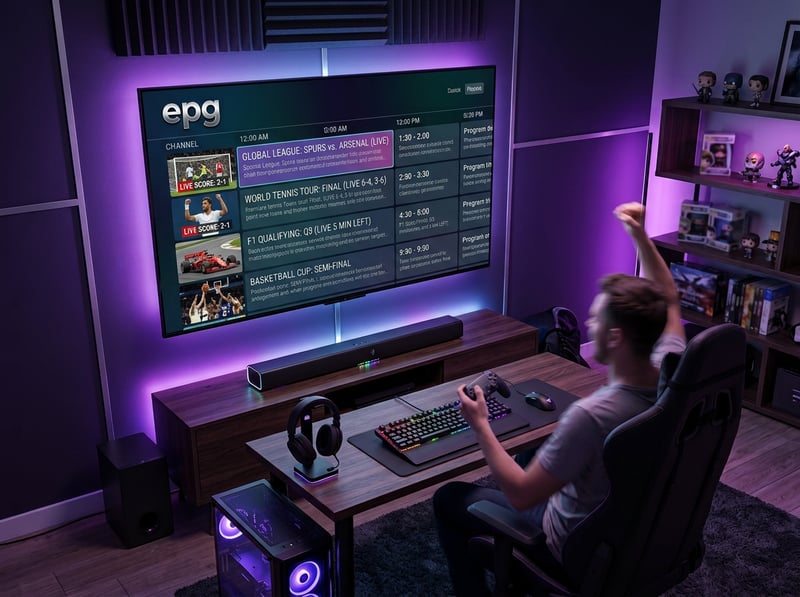
Imagine sitting down for a Sunday football game and finding your guide shows last week's schedule — or worse, European cricket at the wrong time. These aren't rare edge cases; they're exactly what happens when EPG is set up carelessly. Getting it right the first time saves enormous frustration.
Best VPNs to Stop ISP Throttling Affecting Your EPG and Streams
ISP throttling is a real and widespread issue for IPTV users. When your provider detects heavy streaming traffic, they deliberately slow your connection — and EPG file downloads are just as vulnerable as live video streams. ExpressVPN remains the gold standard for Firestick users, with a dedicated Fire TV app, consistently fast servers, and proven ability to bypass throttling on major US and UK ISPs. NordVPN offers obfuscated server options particularly useful if your ISP is aggressively blocking VPN traffic alongside IPTV, and its NordLynx protocol delivers low-latency connections ideal for live sports. Surfshark is the best budget pick — unlimited simultaneous connections means you can protect every streaming device in your home on one subscription. Always connect to a server geographically close to your IPTV provider's server to reduce ping overhead and improve EPG load times alongside stream reliability.
Common EPG Setup Mistakes and How to Fix Them
Even technically confident users make these errors. If your guide won't load, ask your provider for the direct download EPG link specifically, as some apps require a direct .xml or .gz link while others accept a redirect URL. Channel names not matching EPG channel IDs is the most common cause of blank guide slots — in TiviMate, you can manually map channels by selecting the correct EPG ID from a dropdown in the channel settings. If your guide loads but shows only 24 hours of data, this is a provider limitation and you should contact your provider to request an extended 7-day EPG URL if available. For channels showing correct data but for the wrong program, use the manual mapping feature to assign the correct XMLTV ID to each channel variant, particularly for channels sharing similar names like ESPN versus ESPN HD.
Recommended Apps: TiviMate vs. IPTV Smarters Pro for EPG
TiviMate is the undisputed champion for EPG functionality — its guide view is smooth, supports catch-up TV where your provider offers it, handles large XMLTV files without crashing, and allows granular channel-to-EPG mapping. The premium version ($5.99/year) unlocks multi-screen view and DVR recording from the guide. IPTV Smarters Pro is a solid free alternative that works well for users on Xtream Codes subscriptions where the guide data is server-side, though it can struggle with very large XML files and freeze on lower-spec devices. GSE Smart IPTV handles M3U playlist and external EPG URL pairing reliably and is particularly good on Smart TVs and iPads. For pure EPG performance on Firestick, TiviMate wins every time — if you're serious about your IPTV experience, the premium subscription pays for itself in the first week.
Network Requirements for Reliable EPG and 4K Streaming
Your EPG loading correctly means nothing if your streams keep buffering the moment you click into a channel. You need a minimum of 25 Mbps for stable HD streaming, 50 Mbps for 4K UHD content, and at least 10 Mbps just for reliable EPG XML downloads on large provider files. A wired Ethernet connection to your Firestick via a USB-C to Ethernet adapter eliminates packet loss and interference that causes buffering mid-stream and EPG sync failures. If you must use Wi-Fi, ensure your streaming device is on the 5GHz band rather than 2.4GHz, and consider switching your router's DNS from your ISP's default to Cloudflare (1.1.1.1) or Google (8.8.8.8) for faster EPG URL lookups and quicker channel-switching response times.
Troubleshooting: Fixing EPG Playlist Errors
When your guide goes blank or throws an error, work through these fixes systematically before assuming your provider is down. Start by clearing your app's cache on Firestick through Settings, Applications, Manage Installed Applications, TiviMate, Clear Cache — this fixes a surprising number of blank guide issues caused by corrupted cached XML data. Test your EPG URL directly by pasting it into a browser on your phone or computer; if it downloads an XML file the URL is valid, and if it returns an error the problem is server-side. If data appears but is shifted by hours, adjust the UTC offset in your EPG settings to match your local time zone (UTC-5 for EST, UTC+0 for GMT). As a last resort, delete the playlist in your app, re-enter your M3U URL and EPG URL fresh, and let everything reload clean.
Getting EPG on IPTV working correctly is genuinely one of the highest-impact improvements you can make to your entire streaming setup — once your guide is populated, auto-refreshing, and correctly mapped to your channels, using IPTV feels completely natural and intuitive for everyone in your household. Take the time to do it right, keep your EPG URL backed up somewhere safe, and pair it with a solid VPN to keep your connection clean, then head over to our channel list and pricing plans to get the most out of your perfectly configured IPTV experience.
Frequently Asked Questions
Ready to get started?
Try our service risk-free with a 24-hour free trial.
Related Articles
How to Set Up Firestick on TV Step by Step Guide for 2026
Setting up a new Amazon Fire TV Stick does not have to be frustrating. This complete 2026 walkthrough covers everything from physical HDMI connection and remote pairing to unlocking developer options, configuring optimal display settings, and installing the best streaming apps for buffer-free entertainment.

TiviMate Companion Account Setup and Premium Subscription Guide 2026
A comprehensive walkthrough for creating a TiviMate Companion account, purchasing a premium subscription, activating devices, and managing playlists through the mobile companion application. Covers free versus premium feature differences and troubleshooting common login issues.
How to Get IPTV: The Complete Guide for 2026 Enthusiasts
Discover how to get IPTV and troubleshoot issues effectively.