
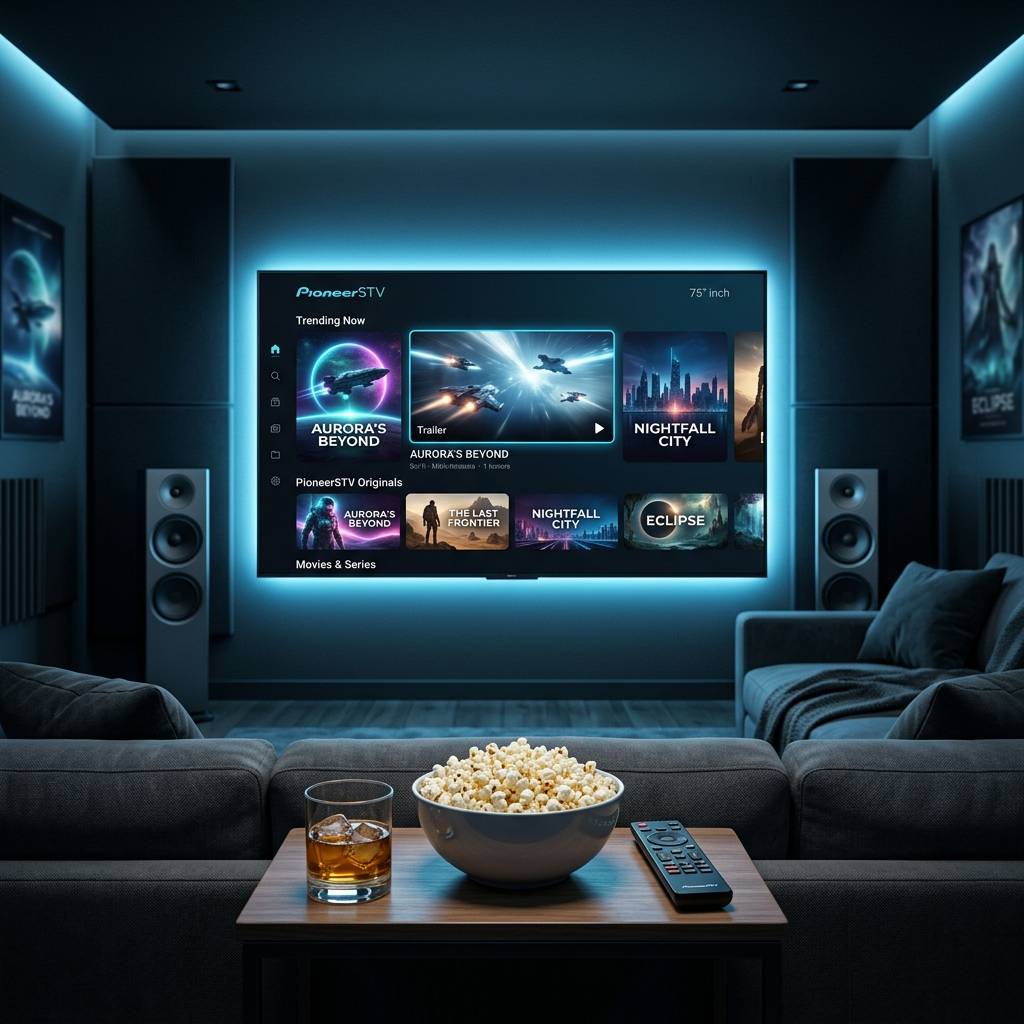
Discover the Best IPTV Subscriptions for 2026: Your Ultimate Guide

Buffering in the middle of a live match. A loading screen that spins forever. An app that crashes every time you try to watch your favorite show. If any of that sounds familiar, the problem probably isn't your internet connection, it's how your IPTV is set up on your Firestick. Getting IPTV on Firestick working properly isn't complicated, but there's a very specific way to do it that separates a flawless streaming experience from a frustrating one. Follow this guide exactly, and you'll have live TV, VOD, and your full M3U playlist running smoothly in under 30 minutes.
Getting this setup right matters more than most people realize. A misconfigured player or a wrong M3U URL entry doesn't just cause minor inconvenience, it can make an otherwise excellent IPTV subscription look completely broken. Taking 30 minutes to do this properly saves you hours of troubleshooting later.
Core Concepts & Need-To-Know Info
- M3U Playlist URL: This is the link your IPTV provider gives you. It contains every channel, VOD title, and stream your subscription covers. It must be entered exactly, one wrong character breaks everything.
- Xtream Codes API: An alternative to M3U links. You enter a server URL, username, and password separately. Most premium IPTV services use this method because it's more stable.
- IPTV Player Apps: Your Firestick doesn't play IPTV natively. You need a third-party app like TiviMate, IPTV Smarters Pro, or GSE Smart IPTV to read your playlist and display channels.
- Sideloading: Because most IPTV players aren't on the Amazon App Store, you'll need to install them via the Downloader app, which requires enabling a specific setting first.
- ISP Throttling: Internet Service Providers often detect and slow down IPTV streaming traffic. A VPN encrypts your connection, making your ISP blind to what you're streaming.
- Internet Speed Requirements: HD streaming needs at least 10 Mbps per stream. 4K requires 25 Mbps or more. A wired ethernet connection via an ethernet adapter always beats Wi-Fi for stability.
- EPG (Electronic Program Guide): This is the TV guide that shows what's playing now and next. Your IPTV provider usually supplies an EPG URL separately from your M3U link.
Step-by-Step Guide
- Step 1: Enable Apps from Unknown Sources:
- On your Firestick home screen, navigate to Settings, My Fire TV, Developer Options. Toggle Apps from Unknown Sources to ON. This is mandatory, without it, you cannot install any sideloaded IPTV app. If you see a warning popup, click Turn On to confirm.
- Step 2: Install the Downloader App:
- Press the Home button and go to the Search icon at the top of your screen. Type Downloader and select the orange Downloader app by AFTVnews from the results. Click Download and wait for installation to complete. This app acts as your browser and file installer combined.
- Step 3: Open Downloader and Install TiviMate (or IPTV Smarters):
- Open Downloader and tap the URL bar. For TiviMate, type the APK download URL provided by your IPTV service or find it via a trusted IPTV community source. Hit Go, wait for the file to download, then click Install when prompted. Once installed, click Done, not Open. Then go back into Downloader and delete the APK file to free up space.
- Step 4: Launch TiviMate and Add Your Playlist:
- Open TiviMate from your apps. On the first launch, you'll see an Add Playlist screen. Choose Xtream Codes if your provider gave you a server URL, username, and password. Choose M3U Playlist if they gave you a single URL link. Enter your details exactly as provided, copy-paste is always safer than typing manually if you're using a phone as a keyboard via the Fire TV app.
- Step 5: Configure Your Playlist Name and EPG:
- After your playlist loads, TiviMate will ask you to name it, use something simple like your provider's name. On the next screen, enter your EPG URL (your IPTV provider sends this alongside your M3U or Xtream Codes login). Set the EPG refresh rate to every 24 hours. This ensures your TV guide stays current without hammering your provider's server.
- Step 6: Organize Your Channels and Test Streams:
- Once inside TiviMate, navigate to your channel list. Scroll to a live sports or news channel and press play. If it loads within 3 to 5 seconds and plays cleanly, your setup is working perfectly. If it buffers, skip to the troubleshooting section below before adjusting anything else.
- Step 7: Set Up a VPN (Strongly Recommended):
- Go back to the Amazon App Store and download a trusted VPN app. ExpressVPN and NordVPN both have official Firestick apps. Log into your VPN account, connect to a server in your country (or the country your IPTV content is based in), and then reopen TiviMate. This step alone fixes buffering for the majority of users experiencing ISP throttling.
Here's a real-world scenario that happens constantly: someone sets up their IPTV perfectly, streams for a week without issues, then suddenly everything buffers. Nine times out of ten, their ISP has started throttling streaming traffic. Without a VPN already installed and ready, they spend hours assuming their subscription is broken, contacting support, reinstalling apps, when a 30-second VPN connection would have fixed it immediately. Another common scenario: a user enters their Xtream Codes server URL with http instead of https, or forgets to include the port number at the end, and the playlist simply refuses to load. Always double-check every character of your login credentials.
Best VPNs to Stop ISP Throttling on Firestick
ISP throttling is one of the top causes of IPTV buffering, and it's almost invisible, your internet speed test looks fine, but streaming tanks. A VPN solves this by encrypting your traffic so your ISP can't identify and throttle it.
- ExpressVPN: The gold standard for Firestick. It has a dedicated Fire TV app, MediaStreamer DNS built in, and consistently fast servers across 94 countries. Speeds rarely drop below what's needed for 4K IPTV.
- NordVPN: Excellent for IPTV because of its NordLynx protocol, which is based on WireGuard. It delivers some of the fastest VPN speeds available and has a clean Firestick app that's easy to use.
- Surfshark: The best budget option. Unlimited simultaneous connections mean you can protect every device in your house on one subscription, and its speeds are more than adequate for HD IPTV streaming.
When using a VPN with IPTV, always choose a server in the same country as your IPTV provider's servers for the lowest latency. Avoid connecting to servers on the other side of the world, the extra distance adds lag that shows up as buffering even if your speeds look fine.
TiviMate vs IPTV Smarters Pro: Which Should You Use?
Both apps read M3U playlists and Xtream Codes, but they're built for different types of users.
- TiviMate: Widely regarded as the best IPTV player for Firestick. Its interface is clean, the EPG integration is seamless, and it handles large playlists (10,000+ channels) without slowing down. The free version is functional, but the Premium subscription ($4.99/year) unlocks multi-screen, recording, and catch-up TV, it's worth every cent.
- IPTV Smarters Pro: Free and available directly from the Amazon App Store, which means no sideloading required. It's a solid choice for beginners who want to get started immediately. The interface is slightly more cluttered than TiviMate, and it can struggle with very large playlists, but for most users it works reliably.
- GSE Smart IPTV: A strong third option, particularly for users who want deep customization of their player settings, subtitle support, and external player integration. It handles M3U URLs extremely well and is a go-to choice for users streaming in multiple languages.
For most Firestick users, TiviMate Premium is the recommendation. The one-time low cost pays for itself in the quality-of-life improvements alone.
Network Requirements for 4K IPTV Streaming
Your IPTV subscription might offer 4K content, but your network setup determines whether you can actually watch it without issues.
- Minimum speed for 4K IPTV: 25 Mbps dedicated to the streaming device. If you have other devices on your network gaming, video calling, or downloading simultaneously, you need at least 50 to 100 Mbps total bandwidth.
- Ethernet always beats Wi-Fi: Plug your Firestick into your router via an Amazon Ethernet Adapter for Fire TV Stick. This single change eliminates most Wi-Fi interference issues and is the number one hardware upgrade any IPTV user can make.
- Router placement matters: If you must use Wi-Fi, keep your Firestick within clear line-of-sight of your router. Walls, especially concrete or brick, can cut your effective Wi-Fi speed in half.
- 5 GHz vs 2.4 GHz: Always connect your Firestick to your router's 5 GHz band. It's faster and less congested than 2.4 GHz, which is shared by everything from microwaves to neighbors' networks.
- QoS Settings: Log into your router admin panel and enable Quality of Service (QoS). Prioritize your Firestick's MAC address to ensure it always gets bandwidth first, even when the rest of your network is busy.
Common Setup Mistakes and How to Fix Them
- Mistake: Playlist loads but shows 0 channels. This almost always means the M3U URL was entered incorrectly, or your subscription has expired. Go back to your playlist settings in TiviMate, delete the playlist, and re-enter your credentials from scratch. If channels still don't appear, contact your IPTV provider to verify your account is active.
- Mistake: EPG shows No Data for all channels. Your EPG URL is either wrong or hasn't had time to load. Go to TiviMate Settings, EPG, Force Reload. If it still fails, double-check the EPG URL with your provider, it's separate from your M3U link and changes occasionally.
- Mistake: App crashes when opening a channel. This is usually a RAM issue on older Firestick models. Go to Settings, Applications, Manage Installed Applications, TiviMate, Clear Cache. Do this monthly. Also close all other background apps before launching TiviMate.
- Mistake: Only some channels work, others show Stream Error. Some channels on your playlist may be temporarily offline, or geo-restricted. Try the same channel on a different stream quality option (most providers offer HD and SD versions of the same channel). If multiple channels fail, your VPN server might be the wrong region, switch servers.
Troubleshooting: Fixing Playlist Errors and Buffering
- Restart everything in order: Unplug your router for 30 seconds, then your Firestick. Plug the router back in first, wait for it to fully reconnect, then restart your Firestick. This clears network state issues that cause mysterious buffering.
- Check your IPTV provider's status: Most quality IPTV providers have a status page or Telegram channel. Server maintenance or outages happen, if it's on their end, waiting is the only fix.
- Switch your DNS: Navigate to Firestick Settings, Network, your Wi-Fi network, Advanced, Set DNS manually to 1.1.1.1 (Cloudflare) or 8.8.8.8 (Google). Your ISP's default DNS can slow down stream initialization significantly.
- Reduce stream quality temporarily: Inside TiviMate, you can force lower quality streams. If 4K buffers but HD plays fine, your connection is the bottleneck, check your speed test and VPN server choice.
- Reinstall the IPTV app: If nothing else works, uninstall TiviMate or Smarters completely, reinstall fresh, and re-add your playlist. Corrupted app data is more common than people think, especially after Firestick system updates.
Setting up IPTV on Firestick the right way the first time is genuinely one of the most satisfying upgrades you can make to your home entertainment setup. With a solid M3U playlist or Xtream Codes login, TiviMate running smoothly, a VPN handling ISP throttling, and your network properly configured, you've built a streaming system that outperforms cable at a fraction of the cost. Every step in this guide exists because it solves a real problem that real users run into, skip none of them, revisit the troubleshooting section whenever something feels off, and check out our full channel list and pricing plans to find the subscription that fits your needs perfectly.
Frequently Asked Questions
Ready to get started?
Try our service risk-free with a 24-hour free trial.
Related Articles

Discover How to Access Canadian TV Shows with IPTV: Your 2026 Guide
Unlock your favorite Canadian TV shows with IPTV solutions.
Fire TV Stick 4K Max Complete Setup and Performance Review 2026
An in-depth review and setup guide for the Amazon Fire TV Stick 4K Max. Covers Wi-Fi 6E speeds, 16GB internal storage, comparisons against standard models, and IPTV optimization.
Discover the Best IPTV Apps for Firestick: Boost Your Streaming Experience
Uncover the top IPTV apps for Firestick to elevate your streaming.